Sunday, April 15, 2018

Disable Task Manager : Applies to Win 7 and up:

Disable Task Manager : Applies to Win 7 and up:

Windows Registry Editor Version 5.00

[HKEY_CURRENT_USER\Software\Microsoft\Windows\CurrentVersion\Policies\System]
"DisableTaskMgr"=dword:00000001

Results in task manager grayed out:


Wednesday, March 14, 2018

Optimize WIFI Adapter: Improve Network Performance

Tried on Surface Pro2 WIFI adapter:'


1. Reg
submitted  by [deleted]
A while back, I was having an issue with my SP2 only connecting at 11Mbps or 5Mbps to my wifi. Awful.
Found a solution. Flipped the 2.4GhzAutoUse40MHz key from '0' to '1' in the registry, and I'm now cruising at >200Mbps link speed.
1) Open device manager, and find the wifi adapter.
2) Open the Details page, and get the Driver ID. It'll probably be something like {4d36e972-e325-11ce-bfc1-08002be10318}\0003
3) Open regedit and go to HKLM\SYSTEM\ControlSet001\Control\Class{4d36e972-e325-11ce-bfc1-08002be10318}\0003
4) Double check that you're in the right key by looking at the DriverDesc value.
5) Change 2.4GHzAutoUse40MHz from '0' to '1'.
6) Reboot

2. netsh


Friday, March 2, 2018

WOL Wake On Lan : Wake Up from Sleep and Shutdown

Finally got mine working, albeit a few varying resources rto get both Sleep and Shutdown to work!

Tested on Win7 & Win8

1. Set NIC Card
     Wake on Packet
     Power Mgmt Tab: Allow turn on
     https://www.howtogeek.com/70374/how-to-geek-explains-what-is-wake-on-lan-and-how-do-i-enable-it/

and enable these

image
     and
     Enable WOL on the network adapter + Enable WOL in BIOS
         http://davidamphlett.net/2014/04/23/enabling-wake-on-lan-from-a-powered-off-state-windows-8-1/
    
2. Set Power Options
     Allow Windows to be woken from PCI/e devices
         http://davidamphlett.net/2014/04/23/enabling-wake-on-lan-from-a-powered-off-state-windows-8-1/
        
    
3. (WIN8) Disable Fast StartUp Start
     https://support.microsoft.com/en-us/help/2776718/wake-on-lan-wol-behavior-in-windows-8-windows-8-1-and-windows-10
     In case option not enabled:
         https://www.eightforums.com/threads/fast-startup-turn-on-or-off-in-windows-8.6320/
         https://www.sevenforums.com/tutorials/819-hibernate-enable-disable.html via powercfg -h on


image

3(WIN7) Install Simple TCPIP Svcs:

https://www.cnetsys.com/how-to-enable-wake-on-lan-wol-windows-7/


4. Test :

a. On remote computer test both:

    Sleep
    and
     Shutdown

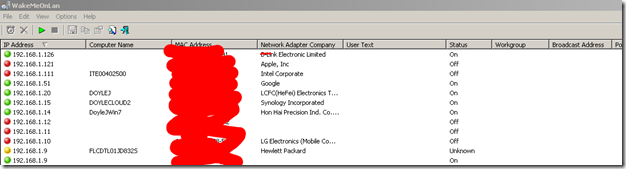
b. I use this tool. To scan and WOL any computer on network:

image

Thursday, March 1, 2018

Using String.Equals() not working as intended error in Lamda

You may get error :

"

Incorrect number of arguments supplied for call to method 'Boolean Equals

"

When trying to use string.Equals() in lamda, this issue can be resolved by using 

Compare instead of Equals.


Explanation: "When using LINQ to Entities, it will automatically convert it to LINQ to SQL. And if the database field you are doing a .Equals on does not have a collate of NOCASE (SQLite in my example) then it will always be case-sensitive. In otherwords, the database defines how to do the string comparison rather than code." per  https://stackoverflow.com/questions/5080727/string-equals-not-working-as-intended/22978905


Example:

  //does NOT work when coalesce is DataColumn on

                var rows = db.WorkflowStartQueues.Where(x => (x.WorkflowStatus != null) && string.Equals(x.WorkflowStatus, workflowStatus, StringComparison.CurrentCultureIgnoreCase)).ToList();

                //DOES work not db reliant

                var rows2 = db.WorkflowStartQueues.Where(x => string.Compare(x.WorkflowStatus, workflowStatus, true) == 0).ToList();


More info:

Case insensitive string equality comparison

Use the String:Compare(string,string,bool) method to explicitly express a case-insensitive complete string equality operation. The generated SQL will not depend on the case-sensitivity of the current database collation.
LINQ: … .Where( x => string.Compare(x.FirstName, simpleParam, true) == 0 ) …
SQL: … where upper(a.FirstName) = upper(@p1) …

Thursday, February 22, 2018

VLC Stream Music Playlist to HTTP: Create your own radio station!

Some examples below:


Stream to Command Line (no VLC  GUI)


vlc -I dummy -vvv file:///C:/Users/DoyleJUser/Music/PlayList.Local.201708.xspf --sout="#transcode{vcodec=none,acodec=mp3,ab=128,channels=2,samplerate=44100}:http{mux=mp3,dst=:8085/}" --sout-keep


Stream to GUI

vlc file:///C:/Users/DoyleJUser/Music/PlayList.Local.201708.xspf --sout="#transcode{vcodec=none,acodec=mp3,ab=128,channels=2,samplerate=44100}:http{mux=mp3,dst=:8085/}" --sout-keep


Remote Control of VLC via Browser or Android App

VLC    Remote Controls
  https://hobbyistsoftware.com/vlcsetup-win-manual
  http://www.teqlog.com/control-vlc-media-player-remotely.html


Conclusion
 VLC Remote Example URL
ttp://192.168.1.14:8080/

  VLC Stream URL:
p://192.168.1.14:8085/


Friday, February 16, 2018

How to BackUp from Android to Desktop using ADB via a Context Menu

Pre-Req's:


install sdk, make sure you know how to run adb from cmd prompt.
Run cmd  as Admin:


1. Figure out paths of your internal/external cards


  adb shell ls $EXTERNAL_STORAGE
  adb shell ls $SECONDARY_STORAGE

 2. Test commands to work with external/internal

  cd C:\Work\Tools\Misc\Android\sdk\platform-tools 
// INTERNAL
  adb pull /sdcard/Backups/ C:\Temp\Phone\Media\20180216\Backups
  // EXT SD CARD
  adb pull /storage/D02B-5AB9/backups/ C:\Temp\Phone\Media\20180216\Backups


  3. Create a bat file to backup all folders using those commands


   See Synch.Phone.BackUp.bat below
   Save to C:\temp (or ur own dir)
   Run bat file like so: Synch.Phone.Backup C:\Temp\Phone\20180216


  4. Add Reg file so we have a context menu


Windows Registry Editor Version 5.00
 
  [HKEY_CLASSES_ROOT\Directory\shell\Synch03_PUSHPhoneHere]
  @="Execute Synch03_PUSHPhoneHere"
 
  [HKEY_CLASSES_ROOT\Directory\shell\Synch03_PUSHPhoneHere\command]
  @="\"C:\\Temp\\Synch.Phone.BackUp.bat\" \"%1\""
  

Bat File    See Synch.Phone.BackUp.bat

*** note your External SD card may b different. Mine is D02B-5AB9


@ECHO OFF
SET dest=%1
setlocal
:PROMPT
SET /P AREYOUSURE=Are you sure U WANT TO %dest% BACKUP TO  (Y/[N])?
IF /I "%AREYOUSURE%" NEQ "Y" GOTO exitMe

 Echo START Synch.Phone.BackUp.bat
 cd %ANDROID_HOME%

 ECHO ****************dest: %dest%
 ECHO ****************START  %DATE% %TIME% synch

 ECHO ****************Current Folder Name: %foldername%

 ECHO ONE way copy phone to BU location
 ECHO synch excluding older file, This should preserve newer copy exist in both locations
 ECHO  ******* Start COPY Internal...

 mkdir %dest%\Backups\Test
 adb pull /sdcard/Backups/Test %dest%\Backups\Test
 mkdir %dest%\Backups
 adb pull /sdcard/Backups %dest%\Backups
 mkdir %dest%\Pictures
 adb pull /sdcard/Pictures %dest%\Pictures


 ECHO  ******* Start COPY External...


 mkdir %dest%\Backups\Test
 adb pull /storage/D02B-5AB9/Backups/Test %dest%\Backups\Test
 mkdir %dest%\Backups
 adb pull /storage/D02B-5AB9/Backups %dest%\Backups


 ECHO ****************DONE  %DATE% %TIME% synch

 cd C:\temp
 pause
:exitMe
 ECHO  ******* exiting...

Saturday, January 27, 2018

Setting Up RDP on Machine with Firewall, Proxies, AntiVirus, File Blockers and other Security Apps. How to RDP with minimal privs:


Using RDP Tools on highly secure laptop : Hosting Procedures for my Fav 2 Remote Tools on Machines with Strict VPN’s

DeskRoll

    Start
         1. Disonnect VPN
         2. Start CMD as Admin
         3. net start DeskRollUnattendedAccess
         4. UI Start: C:\Windows\system32>"C:\Program Files (x86)\DeskRoll Unattended Access\DeskRollU.exe"
         5. Verify is Connected
         6. Connect VPN
         7. Await UI,
         8. Set Proxy to http://prntscr.com/i6ao1n

    Stop
         0. kill DeskRollU.exe
         1. net stop DeskRollUnattendedAccess
         2. Drop VON

Any Connect


     Start
         1.Connect VPN
         2. Run cmd as Admin, enter smart card creds
         3. execute "C:\temp\SharePointAny\SharePointAny.exe"

    Stop
         1. Kill SharePointAny.exe
         2. Disconnect VPN


  Netstat for RDP Debug

     https://apttech.wordpress.com/2009/12/23/using-netstat-to-resolve-rdp-issues/


   Netstat:   


             Poll outgoing, poll every 1 sec for port listening
         netstat -an 1 | find "3333"
        
         Poll incoming
         netstat -an 1 | find "4444" | find "ESTABLISHED"
            

     Network Port Scan


         netstat -a -n
         Now you want to go into Start > Run > cmd > look for ESTABLISHED connections
         "netstat -ano"


     Firewall Check/ Commands


         Run:
         wf.msc
            
         netsh firewall show state
         netsh firewall show config
        
         Enable Port
         netsh firewall add portopening TCP 80 "Open Port 80"
        

     Port Usage:


         Check If Listening:


             >netstat -an |find "3306"

         Check any other firewalls are blocking any ports


             netstat -ano | findstr -i SYN_SENT
        

         Test Port


             to test all open ports:

            portqry.exe -n #.#.#.#  
             To test a specific port:

            portqry.exe -n #.#.#.# -e #
             For example to test the Web interface of a router at 192.168.1.1:

            portqry.exe -n 192.168.1.1 -e 80
             Which returns:

            TCP port 80 (http service): LISTENING
             Where as testing on a local machine with no HTTPD running returns:

            TCP port 80 (http service): NOT LISTENING
             Using a PortScan utility you will get one of 3 results.

            Listening means the server is listening on the specified port
             Filtered means it received a TCP acknowledgement packet with the Reset flag set which likely indicates a firewall or software issue
             Not Listening means it didn't receive a response at all
             telnet is another command line option that is usually installed on the OS by default. This command line utility can be used a quick way to see if a port responds to a network request.

            To use telnet you would simply issue the following command from a command prompt:

            telnet localhost 3306'

     Save Commands History


         doskey /history > commands.log
        

     difference between [::] 0.0.0.0 and 127.0.0.1


         0.0.0.0, in this context,  "all IP addresses on the local machine"
         127.0.0.1 the service is only bound to the loopback interface
         [::] IPv6
        

     Use NetStat for Remote


         https://apttech.wordpress.com/2009/12/23/using-netstat-to-resolve-rdp-issues/


Change Service Names:

Rename Service Image Path w/ sc

        https://stackoverflow.com/questions/3663331/when-creating-a-service-with-sc-exe-how-to-pass-in-context-parameters

    binPath= "\"PATH WITH SPACES \COMMAND.EXE\" --param-with-quotes=\"a b c\" --param2"
          ^ ^                 ^           ^                      ^       ^         ^
          | |                 |           |                      |       |         |
      opening     escaped      regular     escaped                    escaped       closing
        quote     quote       backslash    closing                    quotes          quote
          for     for            in         quote                      for              for
        whole     path          path       for path                  parameter        whole
      command                                                                       command

or
         Stop the service. You will probably confuse the service control manager if you do this on a running service. (You may confuse it anyhow, this is very hacky.)
         Open regedit.exe (Registry Editor).
         Navigate to HKEY_LOCAL_MACHINE\SYSTEM\CurrentControlSet\Services and find the subkey with your service's name.
         Right-click the key you found in step #3, and select Rename. Enter the new name for the service.
         Restart the computer. Services.exe, the process that hosts the service control manager, won't see the change unless you do; attempts to start the renamed process (or otherwise interact with it at all, actually) will fail.
        
         or
        
         sc config "Old service name" displayname= "New service name"
         To change the executable you can run:
        
         sc config "Service name" binpath= "C:\path\to\executable\here"
         For both of those commands, make sure you have a space between the = and the new name (ie. displayname= "New Name", NOT displayname="New Name")
        
         or
        
         sc config "Name of Service" start= disabled
         sc stop "Name of Service"
        

    Change File Properties


        Verpatch to change via cmd line


        Office file via code:


         OleDocumentPropertiesClass
              //creates new class of oledocumentproperties
                 var doc = new OleDocumentPropertiesClass();
            
                 //open your selected file
                 doc.Open(pathToFile, false, dsoFileOpenOptions.dsoOptionDefault);
            
                 //oyu can set properties with summaryproperties.nameOfProperty = value; for example
                 doc.SummaryProperties.Company = "lol";
                 doc.SummaryProperties.Author = "me";
            
                 //after making changes, you need to use this line to save them
                 doc.Save();


Some Browser Based Remote Tools


    http://www.ammyy.com/en/

    https://www.remotepc.com/rpcnew/home
     https://www.screenconnect.com/
         https://flasponge.screenconnect.com/host#Support/All%20Sessions

    https://www.cybelesoft.com/download/#trdp

    https://www.screenleap.com/?newSignUp=true

    https://www.mikogo.com/confirm-registration/

    http://www.aeroadmin.com/en/