Showing posts with label Windows. Show all posts

Wednesday, June 11, 2025

20 Cloud based Virtual Sandbox or CloudPC or Remote Environment Tools available for no cost

  1. Browserling – A cloud-based browser sandbox for securely running applications in an isolated virtual machine.

  2. – A web-based virtual browser for secure browsing and testing without installation.

  3. NetworkChuck Cloud Browser – A zero-trust browser isolation tool for secure browsing and malware testing.

  4. Any.Run – An interactive malware analysis sandbox that runs in the cloud, allowing real-time testing of suspicious files.

  5. – A cloud-based Windows PC that can be accessed remotely for testing and development.

  6. RollApp – A cloud-based platform that lets you run desktop applications in a browser, including development tools.

  7. DistroTest – A free online service that allows you to test various operating systems, including Windows alternatives, in a browser.

  8. AppOnFly – A cloud-based Windows desktop that allows you to run applications remotely.

  9. CloudShell – A browser-based cloud environment for running Linux and Windows applications securely.

  10. Microsoft Azure Sandbox (Microsoft Learn) – Free, temporary Windows VMs via browser-based Azure Cloud Shell for testing VSCode projects or learning Azure.

  11. – Open-source cloud sandbox with Windows VMs for dynamic malware analysis, suitable for testing VSCode project files.

  12. VirusTotal – Free service for scanning files/URLs with antivirus engines, including Windows-based sandbox analysis for VSCode files.

  13. Hybrid Analysis – Free cloud sandbox for static/dynamic analysis of files in Windows VMs, ideal for verifying VSCode project safety.

  14. Kasm Workspaces – Browser-based Desktop-as-a-Service with free Windows desktops for testing and running VSCode in a cloud environment.

  15. Google Cloud Free Tier (Compute Engine) – Free Windows VM (B1S instance) for 12 months via browser-based Google Cloud Console, suitable for VSCode development.

  16. Oracle Cloud Free Tier – Forever-free Compute Instances with Windows support via browser-based Cloud Console, ideal for VSCode projects.

  17. OnWorks – Free platform offering Windows virtual desktops via browser, suitable for running VSCode or testing Windows projects.

  18. CodeSandbox – Cloud-based development platform with Windows-compatible environments via browser, optimized for VSCode-like web projects.

  19. A few others open source projects activehttps://github.com/cuckoosandbox

    https://www.joesandbox.com/#windows

    https://testingbot.com/members/manual/new

    https://github.com/sandboxie-plus/Sandboxie

    https://capev2.readthedocs.io/en/latest/


Sandbox / Cloud VMS Related Services

ServiceDescriptionUser RatingPrice
BrowserlingOnline browser sandbox for secure browsing and testing.Not widely ratedPaid
Web-based virtual browser for anonymous browsing.Mixed reviewsPaid
NetworkChuck BrowserCloud-based secure browsing tool for OSINT and threat research.Not widely ratedPaid
Cloud gaming and virtual PC service for high-performance computing.Well-ratedPaid
RollAppCloud-based application virtualization for running desktop apps online.Mixed reviewsPaid
DistroTestOnline Linux distro testing without installation.Well-ratedFree
AppOnFlyCloud-based remote desktop service for running Windows apps.Mixed reviewsPaid
Google Cloud ShellWeb-based command-line interface for managing Google Cloud resources.Well-ratedFree
Microsoft LearnOnline training platform for Microsoft technologies.Highly ratedFree
Google Cloud FreeFree-tier cloud services including compute and storage.Highly ratedFree (limited)
Oracle Cloud FreeFree-tier cloud services with compute and database options.Well-ratedFree (limited)
OnWorksFree online virtual machines for Linux and Windows.Mixed reviewsFree
CodeSandboxOnline collaborative coding environment for web development.Highly ratedFree & Paid
TestingBotAutomated and manual browser testing platform.Well-ratedPaid


Malware Related

ServiceDescriptionUser RatingPrice
ANY.RUNInteractive malware analysis sandbox with real-time execution.Highly ratedFree & Paid
Malware analysis sandbox with automated threat detection.Well-ratedFree & Paid
VirusTotalMulti-engine malware scanning and threat intelligence platform.Highly ratedFree
Hybrid AnalysisDeep malware analysis powered by Falcon Sandbox.Well-ratedFree & Paid
Cuckoo SandboxOpen-source automated malware analysis system.Well-ratedFree
Joe SandboxAdvanced malware analysis with deep behavioral insights.Highly ratedPaid
CAPE SandboxMalware configuration and payload extraction sandbox.Well-ratedFree

Tuesday, September 26, 2023

Windows Search : Find Files or Folders with Escape Special Characters


Question: How do I find files in Windows 7+ (7, 10, 11) that have a parenthesis or dot or other special search character in the file or folder name?


Yes Microsoft's "advanced query syntax" reference for desktop search mentions nothing about this, however there is an escape sequence that can be used:


Answer: Use following syntax to escape: ~= (tilda+equals sign)

~= is an escape character and then you can put a special character like (, &, ? etc. in double quotes.

For example to find files with parentheses in the name use thew following: ~="("
For example to find files or folders that start with "Search." use the following : Search~="."*


Sunday, January 29, 2023

Microsoft Edge Settings and Flags to boost performance : Part 2


Microsoft Edge Settings and Flags to boost performance : Part 2

Microsoft Edge on Windows Setting Tweaks

Microsoft Edge on Windows Performance Tuning : Adjust Settings to increase performance and reduce IO/CPU load on Windows 10+

The majority of users merely use the standard functionality of the Microsoft Edge browser instead of exploring the many valuable choices and enhancements that are available. You should set aside some time to explore the fantastic capabilities of the Edge browser that are concealed behind settings. Use the Microsoft Edge web browser on platforms including desktop, laptop, Android, and iOS mobile phones.

Click the "three dots" in the top right corner of the screen to access Microsoft Edge settings.

Use Find (Ctrl + F or F3) in the top right corner of the browser, enter your search term, and hit enter to find it. 

Optimize Memory Usage and Battery Consumption of Device

Sleeping Tabs and Efficiency Mode | Two Ways for Boosting Device Performance

Microsoft Edge provides two main ways for improving performance of your device; Sleeping Tabs and Efficiency Mode.

Through both settings, Edge releases trapped memory resources for tabs which are inactive for some time and thus saving battery. You can control this time (for Edge action) in performance settings; say 15 minutes, 30 minutes, or some hours. However, when you turn ON the Efficiency Mode, the browser automatically activates Sleeping Mode relatively fast; say around 5 minutes after there is no activity in the tab.

When a tab becomes faded, it means, it has released CPU resources which now can efficiently be used somewhere else, where they are needed most, for example some media editing software. It is very useful when you have opened multiple webpages of websites, and you are busy in some specific website opened in a tab; so, browser will still utilize CPU and energy resources for the tab where a webpage is visible, but it will release resources for the tabs, you are not interacting with since some time.

On the other hand, Chrome does not provide such optimizations and may use excessive battery power as noted by a Chrome user in this support page.

How Much Memory and CPU Resources Are Saved by Sleeping Tabs?

Just hover mouse over any sleeping tab and it will display the information telling you the amount of memory and processing resources it saved. It is quite beneficial for the working and performance of your device.

According to a recent official Windows article:

On average, each sleeping tab saves 85% of memory and 99% CPU for Microsoft Edge.”

How to Access Efficiency Settings in Edge Browser?

Clicking the Heart symbol in the toolbar of Edge browser. To control settings for Sleeping Mode and its time intervals, click Heart symbol and then select three dots (ellipsis) in small window and select ‘manage performance settings’.

You can also access those settings by clicking three dots in top right corner of web browser, then Settings and System and Performance.

For Which Devices Efficiency Mode Should be Activated?

No need to activate Efficiency Mode for desktop computer (connected through mains supply). For desktop computer, it is enough to just activate Sleeping Tabs for efficient utilization of resources. However, you can activate Edge Efficiency Mode for all other battery-operated devices such as laptops.

Tracking Prevention

  • I have turned ON the toggle button next to ‘Tracking prevention’ option.


Privacy

  • I have turned ON the toggle next to ‘Send "Do Not Track" requests’ option.

Diagnostic Data

  • Turn OFF the ‘optional’ diagnostic data.

  • However, you can turn OFF this optional diagnostic data. You will have to restart your computer for this change. You can do this through your Windows computer settings: Click StartSettingsPrivacyDiagnostics and feedback → under diagnostic data select on ‘Required diagnostic data’ to turn OFF the optional diagnostic data sharing. To Access the same settings in Microsoft Edge mobile browser, click ‘three dots’ (…) on bottom of phone screen, Settings → Privacy and security → Diagnostic data.

Search and Service Improvement Data

  • I don’t mind turning the button OFF next to ‘Search and service improvement’ option. It is

Personalize your web experience

  • I have turned OF the toggle button next to this option so that Microsoft does not show me relevant ads.

Enhance Performance and Speed of Edge Browser

SettingsSystem and performance.

Steps to Improve Performance and Speed of Microsoft Edge Browser

Watch Video on YouTubeBoost Performance and Speed of Microsoft Edge

Follow these steps to improve speed and performance of Microsoft Edge.

  • Preload pages for faster browsing and searching’ = ON.

  • Preload the new tab page for a faster experience = ON

  • Continue running background extensions and apps when Edge is closed = OFF

  • Turn ON the Startup Boost.

  • Turn ON the

  • ‘Save resources with sleeping tabs’ and ‘Fade sleeping tabs’.

  • Use hardware acceleration when available’ = ON

  • If Edge is slow or often crashes, TURN THIS OFF.

  • Turn on efficiency mode: OFF else Battery = ON I keep it turned OFF on my computer. However, if you are using a battery-operated device like a laptop, you can turn it ON.

  • Put inactive tabs to sleep after the specified amount of time: = 15


Preload Pages and Startup Boost in Microsoft Edge

Watch Video on YouTubePreload Pages and Startup Boost in Microsoft Edge. Should You Enable It?

Preload pages for faster browsing and searching. = OFF

edge://settings/system’ / Startup boost = OFF

For faster web browsing, user should also turn ON the toggle next to ‘Preload the new tab page for a faster experience’ option. This tweak can be accessed by typing or pasting (edge://settings/startHomeNTP) link in Edge browser.

For faster page loading, based on predictive preloading in background, you can also turn ON the ‘Startup Boost’ feature in Edge browser, by entering ‘edge://settings/system’ in Edge and hitting ‘Enter’ and then toggling ON the button next to ‘Startup boost’ option.

Should You Turn ON ‘Startup Boost’ and ‘Preload Pages’ in Edge Browser?

Normally, I prefer to keep the ‘Startup Boost’ and ‘Preload Pages’ options turned ON in Edge browser for faster browsing experience.

However, please keep in mind that though limited, this feature uses memory resources (RAM, SSD or HDD) as well as internet data for preloading of webpages in background.

Therefore, if you have limited data package, then you can turn it OFF.


How to Keep a Website Activated Always in Edge Browser?

Edge browser has great feature of sleeping tabs to save CPU and data resources from inactive tabs.

However, we do not want some important websites to sleep after a set time. You can tell those websites to your Edge browser in settings through below navigation path.

Click Three Dots for ‘Settings and More’ (or press Alt+F) in top right corner of Edge browser → SettingsSystem and performanceOptimize PerformanceNever put these sites to sleep.

Here you can enter URLs of websites which you want always active to get continuous notifications

Settings : Quiet notification requests

How to Hide/Show Performance Button in Microsoft Edge?

SettingsAppearanceSelect which buttons to show on the toolbar:Performance Button.

To access settings for enhancing performance and efficiency of your device, you can hide or show the ‘Performance button’ by toggling it in settings of Edge browser.

Performance enhancement means that Microsoft Edge browser saves both memory (CPU) and battery consumption of the device. When you turn ON the performance button, it appears on the right side of address bar in toolbar. It looks like a heart filled with pulse symbol.

Fix the New Tab page

By default, Edge’s New Tab page looks a lot like MSN of yore, sporting a bunch of news, ads, and promoted links. This clutter may potentially be a source of reduced performance in Microsoft Edge.

Open a new tab in Microsoft Edge and click the gear icon in the top-right corner of this page. Now, use the following settings:

  • Layout: Focused
  • Quick links: Off
  • Background: Off
  • Show greeting: Off
  • Office sidebar: Off
  • New tab tips: Off
  • Content: Content off

Other Settings

  • edge://flags/#enable-system-notifications = disabled
  •  edge://flags/#enable-quic =  disabled (privacy) enabled (speed)
    • Be aware that DoDo wants this OFF
  • edge://flags/#disable-accelerated-video-decode and 
  • edge://flags/#disable-accelerated-video-encode
If you get menus and dialog boxes not rendering correctly, a green screen appears when playing a video on Microsoft Edge, or there are rendering issues on a virtual machine, disabling hardware acceleration can resolve the problem

  •       edge://flags/#edge-global-media-controls =  enabled
  •       edge://flags/#enable-parallel-downloading =  enabled
  •       edge://flags/#smooth-scrolling = enabled
  •       edge://flags/#back-forward-cache = enabled
  •       edge://flags/#edge-experimental-tracking-prevention-features = enabled

---------------------

Disable or Replace ntp.msn.com

The exact URL, which is called every time you open a new tab, is ntp.msn.com. Unlike Google, Edge Chromium doesn’t offer any local page, which would load a lot faster. However, you can block the URL  via the Host file. Follow our guide on how you can edit the Hosts file,

Do this and then navigate to edge://settings/onStartup and then add about:blank against Open a specific page or pages under On Startup settings.


Some More Interesting Tweaks of Favorites in Edge Browser

Click on ‘Favorites’ + click ‘three dots’ : options such as importing favorites from another browser or removing duplicate links from favorites.

In the Favorites Bar, you can right-click any folder to see more interesting options; for example, you can open all Favorites links at once in a window.

In Favorites Bar, click any folder, then hover your mouse on any link and then right-click and you will see many useful options such as to edit, copy, cut or delete a specific link from the favorites.

---------------------

Tuesday, April 28, 2020

Windows 10 : Windows Update Service Depends Notes

If utilizing one of the various recommendations to improve Windows 10 performance such as flavors of Black Viper or other service configurations, please note that there are new services in Windows 10 related to Windows Update. The following services have dependencies with Windows Update in Windows 10 thus when changing service status to boost performance be aware that you may break Windows Update or the installer process.

The default install of Windows 10 (Pro or Home) sets these services to run Automatically it is thus a best practice to audit changes to service configuration before and after any manual updates.

1. Windows Module Installer:

Also required for msi installs, e.g: .Net FR Runtime install/updates install via direct .msi/exe execution.

2. Windows Remediation Service

Added in a cumulative update. Microsoft announced that the Windows 10 KB4023057 update patch would enhance the service components’ reliability. The patch offers reliability improvements for the following versions of the Windows 10 operating system:‘ 1507 – 1803.

The exe assoc. with this service is Sedlauncher.exe normally in the C:\Program Files\rempl directory.

3. Microsoft Compatibility Telemetry

This is a system service in Windows 10 & is part of the Windows Customer Experience,  Improvement Program and Windows Update.  The executable file for this service is used for upgrading Windows to the latest Version and installing Service Pack Updates. It is located in the C:\\Windows\System32 directory and transfers telemetry data.


More Info regarding these services:

What is Windows Remediation Service

Fix or Disable the Windows Compatibility Telemetry Service


Methods to disable services:

Windows Remediation Service

  1. Launch the Run dialog box by pressing Windows Key+R on your keyboard.
  2. Inside the Run dialog box, type “services.msc” (no quotes).
  3. Once the Services utility window is up, scroll down until you find the Windows Remediation Service.
  4. Right-click it, then select Properties.
  5. Now, go to the General tab.
  6. Stop and Disable | Apply

Windows Compatibility Telemetry Service

1. Run | gpedit.msc

2. Browse to : "Computer Configuration >  Administrative Templates > Windows Components > Data Collection and Preview Builds".

3. Set Allow Telemetry = False

See Example here

Monday, December 9, 2019

Windows 10 Clean Up Shell Context Menu for File, Folder

Right click menu taking a long time to appear? Clean up menu’s that are taking time & obsolete on your system; these worked for me:

1. Remove NVIDIA “Run with Graphics” menu from context menu

2. Remove Other menus using ShellEx:

3. Remove “Gove access to” menu

Open RegEdit

        Go to : 
        HKEY_LOCAL_MACHINE\SOFTWARE\Microsoft\Windows\CurrentVersion\Shell Extensions\Blocked

Create a new string value here named {f81e9010-6ea4-11ce-a7ff-00aa003ca9f6}.

4. Remove other annoying menus:

including:

"restore previous versions" :  {596AB062-B4D2-4215-9F74-E9109B0A8153}

"shared folder synchronization" : {6C467336-8281-4E60-8204-430CED96822D}

“Give access to” : {f81e9010-6ea4-11ce-a7ff-00aa003ca9f6}

All 3 disabled should look like:

5. Remove Folder Shell Menus, for example “Include in Library” ect ect

Open RegEdit

Browse to Computer\HKEY_CLASSES_ROOT\Folder\shellex\ContextMenuHandlers

Delete Keys that are not needed

Friday, November 22, 2019

Get Count of items in a Google Drive Folder

So , you uploaded 100+ files to a Google Drive folder, you upload, you wait and now you want to confirm,. However, now there is no easy way to check that file count in the Google Folder,. While on Windows (or your OS of choice) there is a method to easily check the file count in said folder, in Google Drive folders there is not. Thus due to Google’s infinite wisdom of not supplying an OS equivalent Folder operation like “Count” for users, there are several “hacks” that we as users must perform in order to get the what one would think is an intrinsic property such as Folder Item Count,. Programmatically, this would be something like Folder.Items.Colunt or some other qualifier/property accessor.

Thus here we are, as users to implement a-round about way to access such property that should in a just world would simply be available from the Right Click / Context Menu!


Method 1:

  • Right-click on a folder and select 'Download'. You'll often (but not always) see a count of the included files.
  • Open a folder, scroll to the end of the list, type A to select all, choose 'More' and select 'Move to'. That will give you a total number of files, after which you can cancel the move.
  • Control-click a folder to open in a new tab. The new tab will show the number of files, but only if there are less than 500.

Method 2 :

1. open the folder
2. repeatedly scroll down until you reach the end the folder. You can use the End key
3. select all the files using Shift+A
4. mouse over the "share" button to see the number of files: "share N items".

Wednesday, September 25, 2019

Filmora Settings for Windows Performance

Filmora

1. Enable GPU

https://www.youtube.com/watch?v=TZ8x5zIudPg

see also: http://support.wondershare.com/how-tos/what-shall-i-do-if-it-fails-to-enable-gpu-accelerate.html

2. Convert with WonderShare:

https://www.wondershare.com/topic/gpu-optimization.html

3. Other Settings

The following list contains suggestions for ensuring optimum performance when working with your Filmora editing application on a Windows Vista, Windows 7 or Windows 8 system:

· Disable CPU throttling.

· In Control Panel > Hardware and Sound > Power Options, select High Performance.

· Do not enable the Windows Display setting “Show window contents while dragging.” This setting hinders redraw performance on your Filmora editing system.

· In Control Panel > Appearance and Personalization > Personalization > Window Color and Appearance > Effects, deselect Show window contents while dragging.

· Enable setting to adjust for best performance.

· In Control Panel > System and Maintenance > System > Advanced System Settings > Performance Settings, select Adjust for best performance.

· Disable Desktop compositing.

· Follow this guide here regarding correct Desktop Composition Settings

· Disable Windows Defender.

· In Control Panel > Security > Windows Defender > Tools > Options > Administrator Options, deselect Use Windows Defender > Save.

· Disable Sidebar.

· Right-click the Sidebar or Sidebar icon on your desktop > Properties > Deselect Start Sidebar when Windows starts > Right click icon and select Exit.

· Disable Hibernation in the Power options.

· In Control Panel > System and Maintenance > Power Options > Change when the computer sleeps > Put the computer to sleep, select Never.

· Set automatic updates to Notify you but don’t automatically download.

· In Control Panel > System and Maintenance > Windows Updates > Change settings, select “Notify me but don’t automatically download them or install them.”

· Turn off the firewall for Filmora Interplay.

· In Control Panel > Security > Windows Firewall, select Turn Windows Firewall on or off.

· Do not leave the Console window open when you edit. The performance of your Filmora editing system slows considerably when the Console window is open.

· Do not leave a Windows Explorer window open. Windows Explorer attempts to update file information.

· Do not leave an e-mail application open if it is set to do periodic checks for mail.

· Do not run any application that periodically “wakes up” and performs an action.

· Disable screen savers.

· Do not keep media on the same partition where you install your Filmora editing application. Filmora recommends external media drives.

· Always use small fonts with the display driver to avoid missing characters in the dialog boxes in your Filmora editing application.

· After you move a drive from one system to another, restart your system. Windows does not recognize the drive until you restart.

· Ensure you do not accidentally delete locked items from your desktop.

· Right-click the Recycle Bin icon on your desktop > Properties > General tab > Display delete confirmation dialog.

· When you advance by single frames through the Timeline, deselect Render On-the Fly to enable faster response time.

· In your Filmora editing application, deselect Clip > Render On-the-Fly

· Do not name files with special characters (/ \ : ? ” < > | *). Windows does not recognize special characters in file names. Bin names are limited to 27 characters (not including the four characters reserved for the file name extension).

· Do not schedule automatic backups at times when your Filmora editing system might be in use.

Davinci Resolve Settings for Windows Performance Boost

1. Proxy Mode

https://gfycat.com/CompetentConventionalFieldmouse

2. Render Cache

https://gfycat.com/SparklingHarmoniousFairybluebird

3. Render Cache O

https://gfycat.com/ElasticScientificEasternglasslizard

4. Optimize Media Render Cache

http://prntscr.com/pb0ytk

5. Extra Display

https://www.youtube.com/watch?v=-sn9ajcLKYY

Wednesday, September 18, 2019

Windows 10 Network Reset Options

1. Cmd Line:

1. Command prompt, and then select Run as administrator > Yes.

2. At the command prompt, run the following :

  • Type netsh winsock reset and press Enter.
  • Type netsh int ip reset and press Enter.
  • Type ipconfig /release and press Enter.
  • Type ipconfig /renew and press Enter.
  • Type ipconfig /flushdns and press Enter.

See also


2. Via Settings GUI

Note

To use network reset, your PC must be running Windows 10 Version 1607 or later. To see which version of Windows 10 your device is currently running, select the Start button, then select Settings > System > About.

  1. Select the Start button, then select Settings > Network & Internet > Status > Network reset.
    Open Network & Internet Status settings
  2. On the Network reset screen, select Reset now > Yes to confirm.

    Wait for your PC to restart, and see if that fixes the problem.

Notes

See also


3. SurfaceBook 2 Specific Network Reset options:

Log in as admin , run "SurfaceDiagnosticToolkit_SA". Restarted

and…

Ok, problem solved. In another thread, a MSFT support person suggested connecting via Wi-Fi and installing updates with the Surface2 Pro in the dock, then do a shutdown and restart I installed the update correctly but needed to restart the Dock as well as the Surface2 Pro. (The instructions did not mention shutdown and restart on the dock...) After pulling the dock plug and re-energizing, the Ethernet port connected immediately with the router. The Ethernet driver for the dock is an Optional Update, so the user needs to view the windows update details and check the update "ASIX... driver for Ethernet...whatever" to download and install the optional update.


See also

Monday, September 16, 2019

SSD drives and Windows 10 Defrag

For those with, and all that eventually will have, an SSD drive:

Do not defrag that SSD!

Do not defrag with a 3rd party utility!

However if you have Windows Defrag scheduled, windows 10 defrag is smart enough to not defrag the SSD unless absolutely necessary and will only defrag using a trim method specific to SSD drive,


More info here

Saturday, August 17, 2019

WinRAR Command Line Examples

Some examples of using WinRAR from command line to automate zipping of files into chuncks:


-- chunk folder into a rar in 700MB increments
"c:\Program Files (x86)\WinRAR\WinRAR.exe" a -afrar -v700m "C:\Temp\Destination.rar" "C:\Temp\SourceFolder"


-- another
"c:\Program Files (x86)\WinRAR\WinRAR.exe" a -afrar -v700m "C:\_bu\wwwroot.rar" "C:\_bu\wwwroot"

Monday, July 29, 2019

Search using Date Range in Windows and GMail

1. Windows

- Date between 3/26 and 3/28

datemodified:‎3/‎26/‎2019 .. ‎3/‎28/‎2019

- Other Date Examples,

modified:2/1/2016 .. 2/20/2016
Note the two periods between the dates, this tells the search engine to use it as a range. You could also use “Datecreated:” or just “date:” instead of “modified:” if you wanted to.

- Advanced Examples Here

2. Gmail:


Before/After Date


     before:2018/9/1
     after:2018/9/1 before:2018/11/18
    

Before/After Relative Date (instead of specific date)


     newer_than:2d
     older_than:30d

Search multiple labels!


         label:(sent OR inbox)
         label:(sent OR inbox) Indeed
         label:(awork-jobs OR awork-jobs-jobsites) Indeed
         label:(awork-jobs OR awork-jobs-jobsites | awork-jobs-melbourne) older_than:30d
         label:(label:awork-jobs-remote) older_than:30d

Tuesday, May 14, 2019

Windows Startup Location Order : Windows Application Startup locations


List of registry keys that can start a program when Windows boots. Applies to Windows 9x thru Win10, see reference articles here and here


I. Windows Boot Device Drivers

These drivers are loaded first as they are required for the proper operation of hardware such as storage devices. Boot device drivers will be located under the following key and have a Startvalue equal to 0.

Registry Keys:

HKEY_LOCAL_MACHINE\System\CurrentControlSet\Services

1 )Windows will now perform various tasks

2) start the Winlogon process.

3) Then starts the service control manager that loads services & drivers that are set for auto-start.

Windows Auto-start Services & Drivers –The (SCM) process (\Windows\System32\services.exe), will now launch any services or drivers that are marked with a Start value of 2.

Registry Keys:

HKEY_LOCAL_MACHINE\System\CurrentControlSet\Services

II. RunServicesOnce

- This key is designed to start services when a computer boots up. These entries may continue running even after you log on, but must be completed before the

HKEY_LOCAL_MACHINE\...\RunOnce registry can start loading its programs.

Registry Keys:

HKEY_LOCAL_MACHINE\Software\Microsoft\Windows\CurrentVersion\RunServicesOnce

HKEY_CURRENT_USER\Software\Microsoft\Windows\CurrentVersion\RunServicesOnce

II. RunServices

- This key is designed to start services as well. These entries can also continue running even after you log on, but must be completed before the HKEY_LOCAL_MACHINE\...\RunOnce registry can start loading its programs.

Registry Keys:

HKEY_LOCAL_MACHINE\Software\Microsoft\Windows\CurrentVersion\RunServices

HKEY_CURRENT_USER\Software\Microsoft\Windows\CurrentVersion\RunServices

The Windows logon prompt is shown on the Screen. After a user logs in the rest of the keys continue.

Notify - This key is used to add a program that will run when a particular event occurs. Events include logon, logoff, startup, shutdown, startscreensaver, and stopscreensaver. When Winlogon.exe generates an event such as the ones listed, Windows will look in the Notify registry key for a DLL that will handle this event. Malware has been known to use this method to load itself when a user logs on to their computer. Loading in such a way allows the malware program to load in such a way that it is not easy to stop.

Registry Key:

HKEY_LOCAL_MACHINE\SOFTWARE\Microsoft\Windows NT\CurrentVersion\Winlogon\Notify

III. UserInit Key

- This key specifies what program should be launched right after a user logs into Windows. The default program for this key is C:\windows\system32\userinit.exe. Userinit.exe is a program that restores your profile, fonts, colors, etc for your user name. It is possible to add further programs that will launch from this key by separating the programs with a comma. For example:

HKLM\Software\Microsoft\Windows NT\CurrentVersion\Winlogon\Userinit =C:\windows\system32\userinit.exe,c:\windows\badprogram.exe.

This will make both programs launch when you log in and is a common place for trojans, hijackers, and spyware to launch from.

Registry Key:

HKEY_LOCAL_MACHINE\Software\Microsoft\Windows NT\CurrentVersion\Winlogon\Userinit

IV. Shell Value

- This value contains a list of comma separated values that Userinit.exe will launch. The default shell for Windows is explorer.exe, though there are legitimate replacements that have been made. When userinit.exe starts the shell, it will first launch the Shell value found in HKEY_CURRENT_USER. If this value is not present, it will then launch the value found in HKEY_LOCAL_MACHINE.

Registry Key:

HKEY_CURRENT_USER\Software\Microsoft\Windows NT\CurrentVersion\Winlogon\\Shell

HKEY_LOCAL_MACHINE\Software\Microsoft\Windows NT\CurrentVersion\Winlogon\\Shell

The rest of the Autostart locations will now be processed.

V. RunOnce Local Machine Key

- These keys are designed to start programs synchronously  for current machine or user. Entries in these keys are started once The RunOnce keys may be ignored in Safe Mode depending on OS version.

Registry Keys:

HKEY_LOCAL_MACHINE\Software\Microsoft\Windows\CurrentVersion\RunOnce

HKEY_LOCAL_MACHINE\Software\Microsoft\Windows\CurrentVersion\RunOnceEx

Windows 10 : Run keys (machine, all users)

  • HKLM\SOFTWARE\Microsoft\Windows\CurrentVersion\Run
  • HKLM\SOFTWARE\Wow6432Node\Microsoft\Windows\CurrentVersion\Run (only on 64-bit systems)
  • HKLM\Software\Microsoft\Windows\CurrentVersion\RunOnce (runs the program/command only once, clears it as soon as it is run)
  • HKLM\Software\Microsoft\Windows\CurrentVersion\RunOnceEx (runs the program/command only once, clears it as soon as execution completes)
  • HKLM\System\CurrentControlSet\Services
  • HKLM\Software\Microsoft\Windows\CurrentVersion\RunServices
  • HKLM\Software\Microsoft\Windows\CurrentVersion\RunServicesOnce
  • VI. Run

    - These are the most common startup locations for programs to install auto start from. By default these keys are not executed in Safe mode. If you prefix the value of these keys with an asterisk, *, it will run in Safe Mode.

    Registry Keys:

    HKEY_LOCAL_MACHINE\Software\Microsoft\Windows\CurrentVersion\Run

    HKEY_CURRENT_USER\Software\Microsoft\Windows\CurrentVersion\Run

    Windows 10 : Run keys (individual user)

  • HKCU\SOFTWARE\Microsoft\Windows\CurrentVersion\Run
  • HKCU\SOFTWARE\Wow6432Node\Microsoft\Windows\CurrentVersion\Run (only on 64-bit systems)
  • HKCU\Software\Microsoft\Windows NT\CurrentVersion\Windows\Run
  • HKCU\Software\Microsoft\Windows\CurrentVersion\RunOnce (runs the program/command only once, clears it as soon as it is run)
  • HKCU\Software\Microsoft\Windows\CurrentVersion\RunOnceEx (runs the program/command only once, clears it as soon as execution completes)
  • HKCU\Software\Microsoft\Windows\CurrentVersion\RunServices
  • HKCU\Software\Microsoft\Windows\CurrentVersion\RunServicesOnce
  • VII & VIII. All Users & Current User Startup Folders

    Windows XP, NT, 2000:

    Autostart folder of the current user

    Win 9X, ME
    c:\windows\start menu\programs\startup

    Windows XP
    C:\Documents and Settings\LoginName\Start Menu\Programs\Startup

    Autostart folder of all users

    Windows XP
    C:\Documents and Settings\All Users\Start Menu\Programs\Startup

    Windows NT
    C:\wont\Profiles\All Users\Start Menu\Programs\Startup

    Windows 2000
    C:\Documents and Settings\All Users\Start Menu\Programs\Startup

    Windows 10:

    Autostart folder of the current user

  • shell:startup
  • %appdata%\Microsoft\Windows\Start Menu\Programs\Startup
  • C:\Users\USERNAME\AppData\Roaming\Microsoft\Windows\Start Menu\Programs\Startup
  • Autostart folder of all users

  • shell:common startup
  • %programdata%\Microsoft\Windows\Start Menu\Programs\Startup
  • C:\ProgramData\Microsoft\Windows\Start Menu\Programs\StartUp


  • IX. RunOnce Current User Key -

    These keys are designed to be used primarily by Setup programs. Entries in these keys are started once and then are deleted from the key. If there is an exclamation point preceding the value of the key, the entry will not be deleted until after the program completes, otherwise it will be deleted before the program runs. This is important, because if the exclamation point is not used, and the program referenced in this key fails to complete, it will not run again as it will have already been deleted. The RunOnce keys are ignored under Windows 2000 and Windows XP in Safe Mode. The RunOnce keys are not supported by Windows NT 3.51.

    Registry Key:

    HKEY_CURRENT_USER\Software\Microsoft\Windows\CurrentVersion\RunOnce


    X. Explorer Run

    - These keys are generally used to load programs as part of a policy set in place on the computer or user.

    Registry Keys:

    HKEY_LOCAL_MACHINE\Software\Microsoft\Windows\CurrentVersion\Policies\Explorer\Run

    HKEY_CURRENT_USER\Software\Microsoft\Windows\CurrentVersion\Policies\Explorer\Run

    Load Key - This key is not commonly used anymore, but can be used to auto start programs.

    Registry Key:

    HKEY_CURRENT_USER\Software\Microsoft\Windows NT\CurrentVersion\Windows\load

    AppInit_DLLs - This value corresponds to files being loaded through the AppInit_DLLs Registry value. The AppInit_DLLs registry value contains a list of dlls that will be loaded when user32.dll is loaded. As most Windows executables use the user32.dll, that means that any DLL that is listed in the AppInit_DLLs registry key will be loaded also. This makes it very difficult to remove the DLL as it will be loaded within multiple processes, some of which can not be stopped without causing system instability. The user32.dll file is also used by processes that are automatically started by the system when you log on. This means that the files loaded in the AppInit_DLLs value will be loaded very early in the Windows startup routine allowing the DLL to hide itself or protect itself before we have access to the system.

    Registry Key:

    HKEY_LOCAL_MACHINE\Software\Microsoft\Windows NT\CurrentVersion\Windows

    ShellServiceObjectDelayLoad - This Registry value contains values in a similar way as the Run key does. The difference is that instead of pointing to the file itself, it points to the CLSID's InProcServer, which contains the information about the particular DLL file that is being used.

    The files under this key are loaded automatically by Explorer.exe when your computer starts. Because Explorer.exe is the shell for your computer, it will always start, thus always loading the files under this key. These files are therefore loaded early in the startup process before any human intervention occurs.

    Registry Key:

    HKEY_LOCAL_MACHINE\SOFTWARE\Microsoft\Windows\CurrentVersion\ShellServiceObjectDelayLoad

    SharedTaskScheduler - This section corresponds to files being loaded through the SharedTaskScheduler registry value for XP, NT, 2000 machines. The entries in this registry value run automatically when you start windows.

    Registry Key:

    HKEY_LOCAL_MACHINE\SOFTWARE\Microsoft\Windows\CurrentVersion\Explorer\SharedTaskScheduler


    Thursday, April 25, 2019

    Check .Net Framework Version on any Windows Machine

    1. Open the command prompt (i.e Windows + R → type "cmd").
    2. Type the following command, all on one line: This will list all the .NET versions.

    reg query "HKEY_LOCAL_MACHINE\SOFTWARE\Microsoft\NET Framework Setup\NDP"

    Results: http://prntscr.com/ngyyuz


    1. To get the latest .NET 4 version; Type following cmd, on a single line:

    reg query "HKEY_LOCAL_MACHINE\SOFTWARE\Microsoft\NET Framework Setup\NDP\v4\full" /v version

    results: http://prntscr.com/ngyyxn

    Tuesday, March 12, 2019

    Windows 10 Power Management Tab is missing and Bluetooth

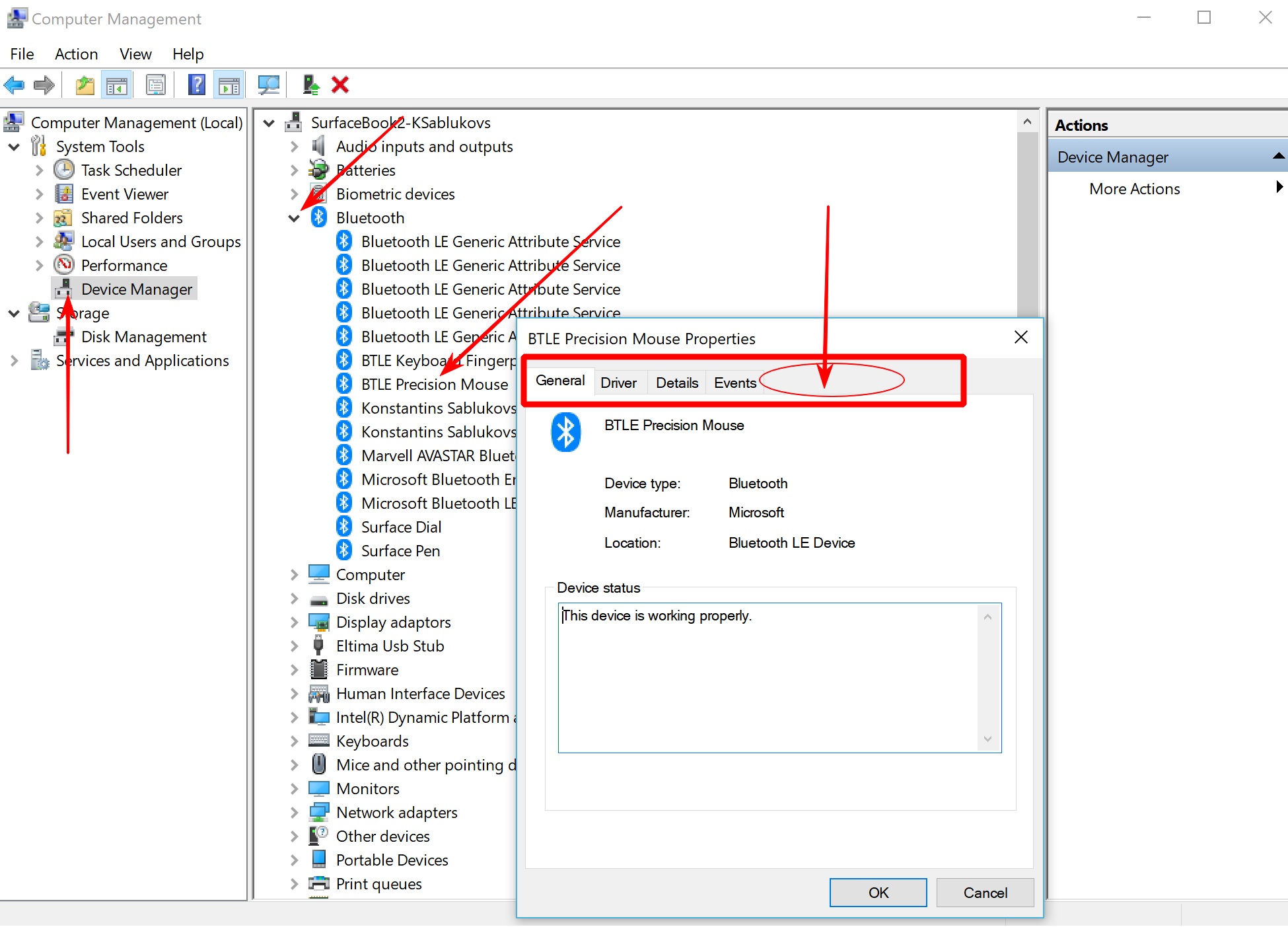
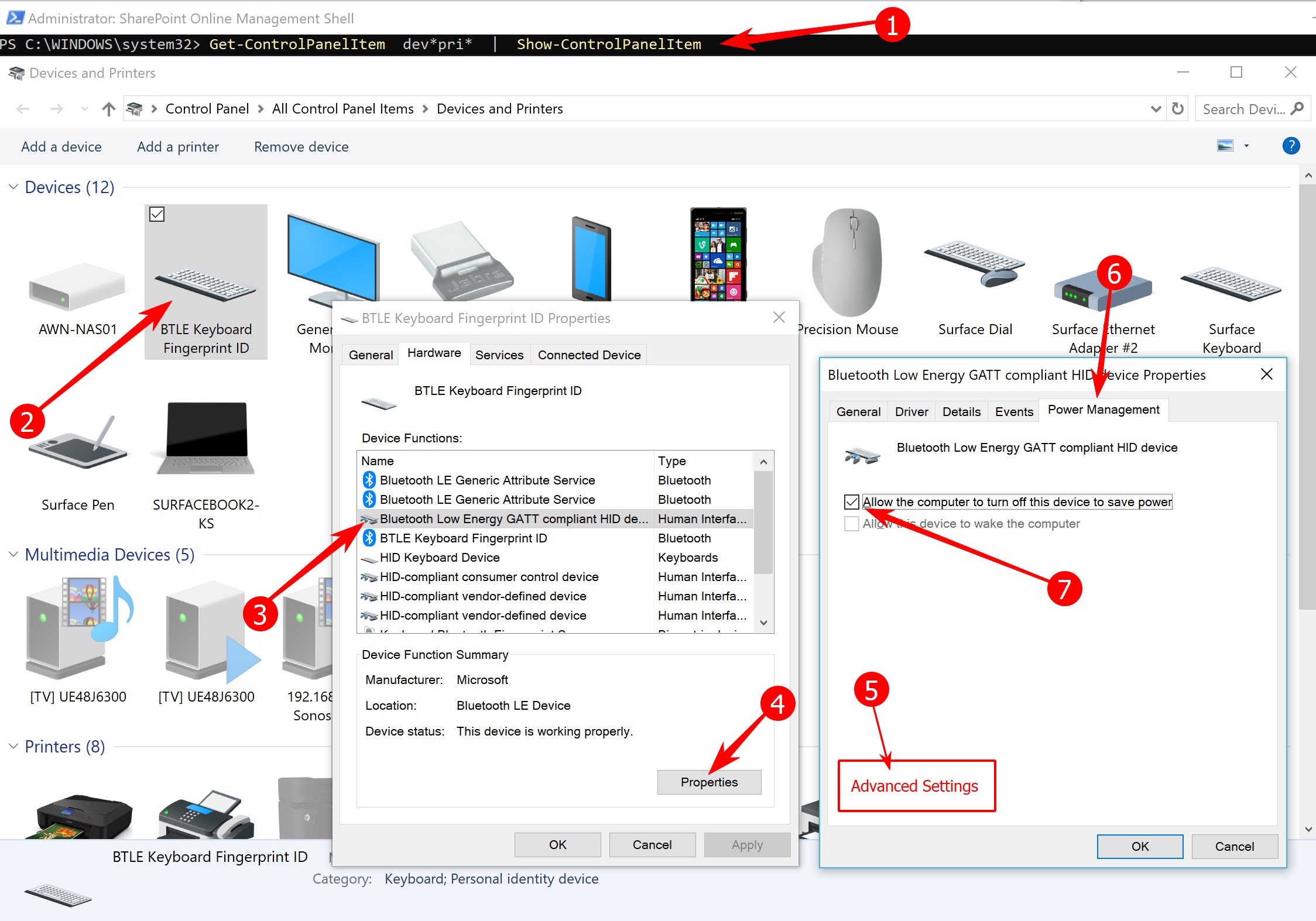
    IF you have issues with a bluetooth mouse or keyboard dropping connection or does not connect when computer awakes / reboots, then the below info will assist. When this issue occurs, most white papers direct us to update the Power Management tab for Bluetooth drivers associated with the peripheral. However starting somewhere around build 1700 or 1800 of Win 10 the Power Management tab is missing from the driver prop tabs. Thus we need a reg hack to bring back the Power Management tab;  Now we can adjust the Power Management  settings associated with the specific BT driver for the peripheral, in my case a Logitech Ultra Thin Mouse

    View Power Management Tab in device manager when it is (hidden) See below:

    Image

    1) create a reg key and set value to 0

    Open RegEdit and move to HKEY_LOCAL_MACHINE\SYSTEM\CurrentControlSet\Control\Power

    If it's not created : create new DWORD key,  name = CsEnabled , value= 0.

    Restart the machine, now check the driver. To view a driver for a specific peripheral the below screenshot show step by step :


    Saturday, September 1, 2018

    Change Windows 10 Default View in Search Results

    After a search Windows 10 shows content view , which for me is useless, I prefer View Details view to appear however Win10 engineers prove this useless content view as the default search results. To change this there is a great reg file solution to tweak Win10 to show Details instead of Content View. Great little tweak to add to your bag of tweaks!


    Reg Tweak courtesy of winhelponline

    Windows Registry Editor Version 5.00

    ;Fixes search results defaults to Content view.
    ;Sets Details view as default search results view for Generic folders.

    [-HKEY_CURRENT_USER\SOFTWARE\Classes\Local Settings\Software\Microsoft\Windows\Shell\BagMRU]

    [-HKEY_CURRENT_USER\SOFTWARE\Classes\Local Settings\Software\Microsoft\Windows\Shell\Bags]

    [HKEY_CURRENT_USER\SOFTWARE\Classes\Local Settings\Software\Microsoft\Windows\Shell\Bags\AllFolders\Shell\{7fde1a1e-8b31-49a5-93b8-6be14cfa4943}]
    "LogicalViewMode"=dword:00000001
    "Mode"=dword:00000004


    Restart explorer.exe or reboot

    Yuck!:

    image


    Instead!:

    image

    Wednesday, August 15, 2018

    Remote Desktop Keyboard Shortcuts

    I. Entering Remote Desktop

    Win+r, then type 'mstsc'

    Microsoft Terminal Services Client.

    mstsc /v:

    Start Remote Desktop and connect to Server, port is optional

    mstsc /f

    Start Remote Desktop in Full Screen Mode

    mstsc /admin

    Runs Remote Desktop in Admin Mode

    mstsc /w: /h:

    Specify either width or height of Window

    mstsc /public

    Run Remote Desktop in Public Mode

    mstsc /span

    Matches Remote Destkop with local virtual desktop

    mstsc /multimon

    Matches Session Layout to Client Layout

    mstsc /edit "connection file"

    Opens Connection Settings of the .rdp file


    II. Shortcuts in Remote Desktop

    Ctrl + Alt + Pause

    Show Connection Bar

    Alt+Page Up

    Switches between programs from left to right (equals standard desktop Alt+Tab)

    Alt+Page Down

    Switches between programs for right to left (equals standard desktop Alt+Shift+Tab)

    Alt+Insert

    Cycles through the programs in the order they were started (equals standard desktop Alt+Insert)

    Alt+Home

    Displays the Start menu (equals standard desktop Ctrl+Escape)

    Ctrl+Alt+Pause

    Switches the client between full-screen mode and window mode

    Ctrl+Alt+Home

    Show (or focus) on Connection Bar (when in full-screen mode)

    Ctrl+Alt+End

    Brings up the Windows Security dialog box.

    Alt+Delete

    Displays the Windows menu.

    Best Windows Apps to Manage Disk Space and Clean Up Hard Disk

    top apps for cleaning up disk:


    Overall:

    Disk Savvy:

    Close 2nd:

    TreeSizeFreeSetup

    and

    FolderSize

    Portable:

    Disktective

    Free:

    TreeSize Free

    WinDirStat

    Others :

    https://www.lifewire.com/free-disk-space-analyzer-tools-398687

    Tuesday, June 5, 2018

    Windows 10 + SurfaceBook 2 Performance Tweaks : Update UI & OS Settings, Remove Bloatware & MS Spyware, Tweak Network Adapter

    Windows 10 Setup: Tweak UI to look more like Windows 7

    1. Add personalization shortcut to desktop, see Figure 1 below

    2. Add Classis Shell to Windows 10,restore the look and feel of Win7

      1. Download Classic Shell here

    3. Tweak Windows Explorer:

      1. View Hidden, icons only ect per view menu

    4. Tweak System UI Performance: System:

      1. Adjust for best performance

    5. Change Computer name

    Windows 10 Setup: Tweak OS to improve performance

    ** note ** Use of my computer is targeted towards development + some multimedia editing. So what works for gamers doesn’t work for me,

    1. Tweak Services for Performance per Black Viper recommendations,.

    2. [Optional] Tweak Paging File for performance,

      1. If RAM > 8GB I keep defautl setting

      2. If Ram <=8gb, SET TO RAM * 1.5

    3. Disable startup applications

      1. MsConfig

      2. Task Scheduler (Hidden)

      3. CCleaner

    4. Disable system visual effects

    5. Disable search indexing / Modify Indexing

    https://www.howtogeek.com/howto/windows-vista/speed-up-or-disable-windows-search-indexing-in-vista/

    1. Disable Diag track

      1. sc config "DiagTrack" start= disabled
        
        sc stop "DiagTrack"
    2. Disable 
      1. Get tips, tricks and suggestions as you use Windows.
      2. See https://www.tenforums.com/tutorials/30869-turn-off-tip-trick-suggestion-notifications-windows-10-a.html
    3. Disable Data Collection:
      1. See https://www.majorgeeks.com/content/page/how_to_disable_diagnostics_tracking_(diagtrack)_or_connected_user_experiences_and_telemetry.html
      2. and https://winaero.com/blog/how-to-disable-telemetry-and-data-collection-in-windows-10/
      3. HKEY_LOCAL_MACHINE\SOFTWARE\Policies\Microsoft\Windows\DataCollection
      4. AllowTelemetry = 0 
      5. and
      6. Diag Track Listener Disable

    Windows 10: Remove Bloatware & MS Spyware


    Overview:

    How to run Debloat Summary

        1. Edit Scripts:

        2. Run scripts in order

            Open PowerShell as an Administrator

            Type the command (without quotes): “Set-ExecutionPolicy Unrestricted” and press enter

        3. Run Other Tools as needed

    Debloat-Windows-10-master

        Main debloater with several scripts to remove Win10 bloatware

    Debloater GitHub Download Scripts here

    Remove Apps Script

    How to Debloat

    More help...

    Other Tools

        WindowsAppsRemover_winxar_102

            Remove/Disable pesky Windows 10 Apps

        O&O ShutUp10

            Disable Windows 10 useless features, O&O ShutUp10 means you have full control over which comfort functions under Windows 10

    https://www.oo-software.com/en/shutup10

    DisableWinTracking

            Disable MS tracking!

    http://www.softpedia.com/get/Tweak/System-Tweak/Windows-10-Tracking-Disable-Tool.shtml

    SurfaceBook 2: Tweak Network Adapter for performance:

    Boost Surface Book/ Pro Wi-Fi connectivity

    The first thing you have to do is to open the registry as an administrator, simply type regedit in the taskbar search box, and hit Enter.

    Navigate to the following path:

    HKEY_LOCAL_MACHINE\SYSTEM\ControlSet001\Services\mrvlpcie8897

    Find the item labeled “TXAMSDU”. Double tap and modify the value from 1 to 0.

    Restart your Windows 10 PC to complete the workaround.

    If everything works as expected, your slow connectivity should be resolved and you should now see an improved wireless connection.

    Windows 10 Issues I ran into:

    1. Mapped drives do not work in Windows 10.

      1. Set EnableLinkedConnections = 1'

    2. Surface MS Wireless Adapter does not work

    3. Mapped Drives do not work after switching Wifi spots on same network:

      1. Open Cmd ->

      2. ipconfig /release

      3. ipconfig /renew

    4. Adobe After Effects and other apps have super tiny unreadable font.

      1. Fix Display Scaling in Windows 10 apps!

      2. And here is my manifest I used to fix Adobe After Effects

      Download AfterFX.exe.manifest

    Figure 1

    Clipped from: https://www.howtogeek.com/277448/how-to-make-windows-10-look-and-act-more-like-windows-7/

    Easily Access the Classic Personalization Window

    By default, when you right-click on the Windows 10 desktop and select Personalize, you are taken to the new Personalization section in PC Settings. However, the Personalization window from Windows 7 is still available in the Control Panel. You can add a shortcut to the desktop so you can quickly access the classic Personalization window if you prefer it.

    Right-click on the desktop and select New > Folder from the popup menu.


    Copy and paste the following text into the name of the folder and press Enter.

    Personalization.{ED834ED6-4B5A-4bfe-8F11-A626DCB6A921}


    The icon changes to the personalization icon and the name of the folder also changes to Personalization. Double-click this icon to access the classic Personalization window in the Control Panel.

    Personalization

    Figure 2 : Other Links

    scripts

    https://community.spiceworks.com/scripts/show_download/3977-windows-10-decrapifier-version-2

    https://github.com/bmrf/tron/blob/master/resources/stage_4_repair/disable_windows_telemetry/purge_windows_10_telemetry.bat

    https://github.com/W4RH4WK/Debloat-Windows-10

    Utils

    https://www.computerworld.com/article/3199125/microsoft-windows/top-30-free-apps-for-windows-10.html#slide21

    https://www.google.com/search?q=win+10+remove+bloatware&rlz=1C1SQJL_enUS790US790&oq=win+10+remove+bloatware&aqs=chrome..69i57j69i64l2.5956j0j7&sourceid=chrome&ie=UTF-8

    https://www.theguardian.com/technology/askjack/2018/jan/18/how-can-i-remove-unwanted-apps-from-windows-10

    https://www.computerworld.com/article/3199125/microsoft-windows/top-30-free-apps-for-windows-10.html#slide21

    https://sourceforge.net/projects/windirstat/files/

    https://www.lastpass.com/

    https://support.microsoft.com/en-us/help/3073930/how-to-temporarily-prevent-a-driver-update-from-reinstalling-in-window

    https://filehippo.com/download_speccy

    https://www.revouninstaller.com/revo_uninstaller_free_download.html

    https://docs.microsoft.com/en-us/sysinternals/downloads/autoruns

    See here