Monday, August 20, 2018

SharePointOnline Workflows: SharePoint Designer Workflows Send Email from 2013 and 2010 Platform Workflows

Some constraints to be aware of when sending emails from SPD WF’s:

1) SP2010 Platform can send email to outside domain recepients (e.g: @gmail.com)

2) SP2013 Workflows on SPO do not throw an error when sending email to outside domain recepient, while OnPrem does throw an error


Some rules to follow:

1) if email is to be sent outside domain recepient, use SP2010 Platform workflow, call that SP2010 WF from a 2013 WF.

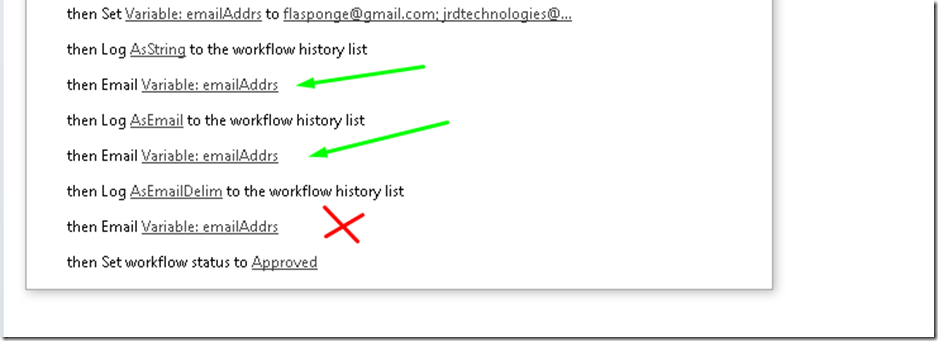
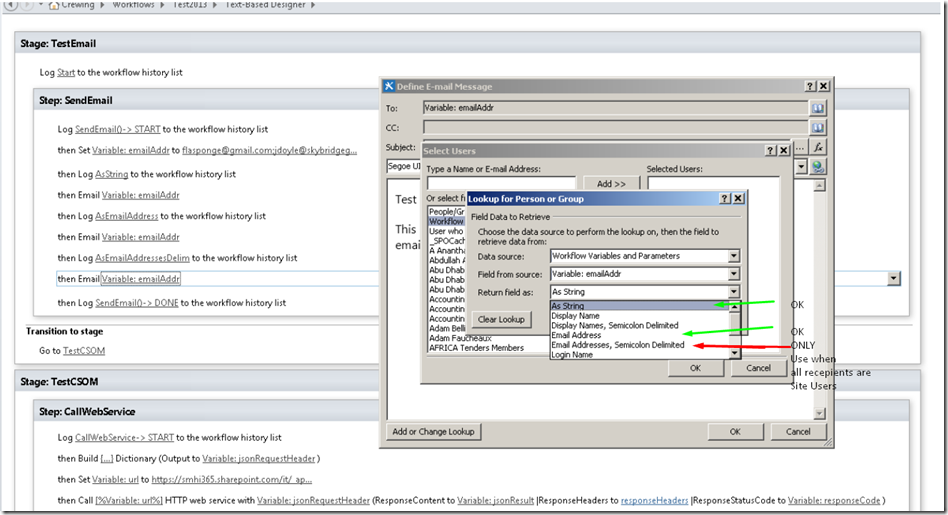
2) Make Sure to use “As String” or “Email Address”, do NOT use “Email Address as Semi Colon Delim” unless all users are SP site users in the Email action.


image


In a SPD 2010 WF:

image

Wednesday, August 15, 2018

Disable Google Mic Listening : Phone and Chrome Browser Settings

1. Disable Phone Mic from Google

The first is to turn off the OK Google detection on your phone, which you can do by performing the following:

Android 7+

1. Open Google app on phone

2. Settings

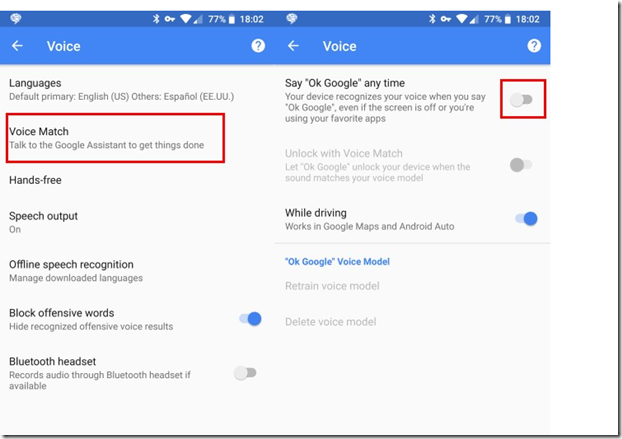
3. Voice Match

4. Turn off “Access with Voice Match”

or (older phones)

  1. Open Settings on your phone and enter the Google category.
  2. Select Search under Services.
  3. Next, tap Voice.
  4. You’ll see a Voice Match entry; this may also be listed as “OK Google” detection. Tap that.
  5. Disable the Say “Ok Google” any time slider. You may also want to disable While driving to prevent it in Google Maps and Android Auto, though it is convenient in those scenarios.

image

Once you do this, Google Assistant will only respond to OK Google when you have the Google app open (or when on the home screen of a Pixel or Nexus device). Your phone thus will no longer always be listening for the hotword.

2. Disbale Chrome Mic access (Desktop)

you can deny the Google app permission to access your microphone: (reverse this when U need Mic access from browser)

  1. Open Settings on your phone and tap Apps & notifications.
  2. Tap See all X apps to get a full list.
  3. Scroll down to Google and select it.
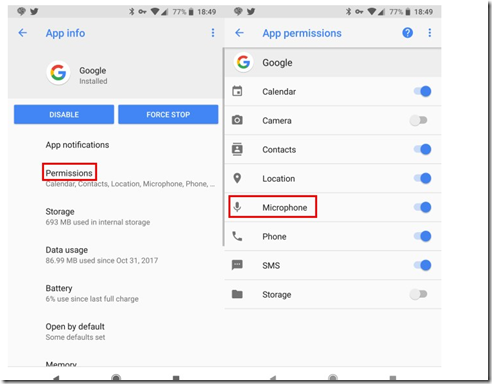
  4. Tap Permissions and disable the Microphone slider.

image

Remote Desktop Keyboard Shortcuts

I. Entering Remote Desktop

Win+r, then type 'mstsc'

Microsoft Terminal Services Client.

mstsc /v:

Start Remote Desktop and connect to Server, port is optional

mstsc /f

Start Remote Desktop in Full Screen Mode

mstsc /admin

Runs Remote Desktop in Admin Mode

mstsc /w: /h:

Specify either width or height of Window

mstsc /public

Run Remote Desktop in Public Mode

mstsc /span

Matches Remote Destkop with local virtual desktop

mstsc /multimon

Matches Session Layout to Client Layout

mstsc /edit "connection file"

Opens Connection Settings of the .rdp file


II. Shortcuts in Remote Desktop

Ctrl + Alt + Pause

Show Connection Bar

Alt+Page Up

Switches between programs from left to right (equals standard desktop Alt+Tab)

Alt+Page Down

Switches between programs for right to left (equals standard desktop Alt+Shift+Tab)

Alt+Insert

Cycles through the programs in the order they were started (equals standard desktop Alt+Insert)

Alt+Home

Displays the Start menu (equals standard desktop Ctrl+Escape)

Ctrl+Alt+Pause

Switches the client between full-screen mode and window mode

Ctrl+Alt+Home

Show (or focus) on Connection Bar (when in full-screen mode)

Ctrl+Alt+End

Brings up the Windows Security dialog box.

Alt+Delete

Displays the Windows menu.
Best Windows Apps to Manage Disk Space and Clean Up Hard Disk

top apps for cleaning up disk:


Overall:

Disk Savvy:

Close 2nd:

TreeSizeFreeSetup

and

FolderSize

Portable:

Disktective

Free:

TreeSize Free

WinDirStat

Others :

https://www.lifewire.com/free-disk-space-analyzer-tools-398687

Tuesday, August 14, 2018

Windows 10 Photos app replace/alternative

Criteria:

1. Fast

2. Portable

3. Clean

4. Basic Edit

5. File and metadata info

6. Cull images quickly


here are my top picks


Top Pick:

No Macs, ALLOT of cool stuff, get used to Panels and you will be productive, some really cool and clean features

http://download.nomacs.org/

how to use here: https://www.youtube.com/watch?v=pydMeEbnzA8


Close but not quite:

JPEGView, basic but has strange opaque menus

https://sourceforge.net/projects/jpegview/

Nostalgia for Win8

https://download.cnet.com/Restore-Windows-Photo-Viewer/3000-18488_4-77362441.html


Overkill

https://alternativeto.net/software/irfanview/reviews/
https://www.irfanview.com/
https://download.cnet.com/IrfanView-64-bit/3055-2192_4-76444710.html?part=dl-&tag=pdl-redir
https://www.geckoandfly.com/2306/alternative-photo-organizer-acdsee-10-photo-manager/
https://creative.adobe.com/products/download/bridge
https://imaging.nikon.com/lineup/software/viewnx-i/
https://www.digikam.org/download/
https://www.xnview.com/en/xnview/#downloads

Reviews/How To Videos


https://www.youtube.com/watch?v=pydMeEbnzA8
https://www.youtube.com/watch?v=WPCGS7L82z4
https://www.youtube.com/watch?v=2hrPFHeVeO4
https://www.youtube.com/watch?v=g1lB3S3eg20
https://www.youtube.com/watch?v=mVgLWcRqfL4
https://www.youtube.com/watch?v=a1TkqSPGsDs
https://www.youtube.com/watch?v=N4AxAcr7pS8
https://www.youtube.com/watch?v=8iDlJy8DXTU
https://www.youtube.com/watch?v=qORu1Lvb0dw
https://www.youtube.com/watch?v=N4AxAcr7pS8

Monday, July 23, 2018

SharePoint 2013 Designer Error on Workflow : Server-side activities have been updated. You need to restart SharePoint Designer to use the updated version of activities.

Summary:


Option 1)

A full clean uninstall of Visual Studio 2015  did the trick to get SharePoint Designer 2013 working again for me. All Workflows finally open OK again!!!!

Here are some highlights of lessons learned, that I hope can be used in case anyone may encounter this in the future:

1) Always install SharePoint Designer 2013 before Visual Studio 2015.

2) If  Visual Studio 2015 IS installed before SharePoint Designer 2013 then you may encounter an error :

a. “Server Side Activities have been updated”

i. https://answers.microsoft.com/en-us/msoffice/forum/all/sharepoint-2013-designer-workflow-issue-server/f36da602-5000-43ed-97c4-a273a5600c15

3) When uninstalling Visual Studio 2015, the default uninstaller does not “clean” everything. The below tool can be used to completely remove Visual Studio 2015 to ensure that any new install starts with as fresh clean environment:

a. http://ridilabs.net/post/2017/03/11/Clean-Uninstall-Visual-Studio-2015-to-Install-Visual-Studio-2017.aspx#.WqY4wleJIuU


Option 2):

Please close your SharePoint Designer application, clear/delete the cached files and folders under the following directories from your server installed SharePoint Designer, then check results again.

<user profile>\appdata\roaming\microsoft\SharePoint Designer\ProxyAssemblyCache
<user profile>\appdata\local\microsoft\websitecache\<sitename>


Option 3)

Install Patch:

https://support.microsoft.com/en-us/help/3114337/january-12-2016-update-for-sharepoint-designer-2013-kb3114337

Saturday, June 30, 2018

How to share Express VPN WIFI connection as Hotspot using Connectify Tip

How to share Express VPN WIFI connection as Hotspot using Connectify Tip:

1. Tweak the following Express VPN Settings
2. Close all
3. Open Express VPN, Connect
4. Ensure VPN Connection is working
5. Open Connectify select the ExpressVPN TapAdapter

*** this does NOT work on any Surface due MS dropping hostednetwork