Tuesday, January 11, 2022

Export or Bookmark all open tabs from Android to Windows

Here we will try 2 different methods to achieve export and bookmark of all open tabs respectively,

 Export All Open Tabs from Android Chrome to Windows Chrome

1. You'll need to download and install Android Dev Tools on your computer, as well as set your mobile device to Developer Mode. Android Dev Tools can be downloaded and installed here.

We will only require the adb application, but we will still need to install the entire toolbox. Personally, I found it easiest to download and install Android Studio.

2. Put your Android phone in Developer's Mode and connect with a cable to your desktop. 

Here is how to set Dev Mode.

It's best to connect using a USB, because sometimes the device cannot be discovered by adb. Here is an official instruction how to turn it on. Also, you may want to turn on MTP configuration in "Select USB Configuration" menu as described here, otherwise adb may not find your device.

3. Verify ADB can Connect ADB to your phone.

Open CMD, browse to where adb.exe is installed. Run the command:

adb devices:

You should see the output similar as follows:


4. Connect to Chrome Remote Debugger on Android:

Chrome mobile has a feature to expose remote debugger on tcp socket which you can access from your desktop. The so called "legacy" debugging workflow is described in Chrome developers documentation.

It is called "legacy" because now there is more fancy way of debugging mobile Chrome using Chrome Dev Tools.

For our purpose however the "legacy" way is more useful because we get access to a bare text interface in JSON format which gives easy way to extract open tabs URLs.

execute the following cmd:

adb forward tcp:9222 localabstract:chrome_devtools_remote

you should see output as follows::


5. Verify Chrome Remote Debugger connection:
Open Chrome, browse to following URL:

http://localhost:9222/json/list

Output should be similar as follows:
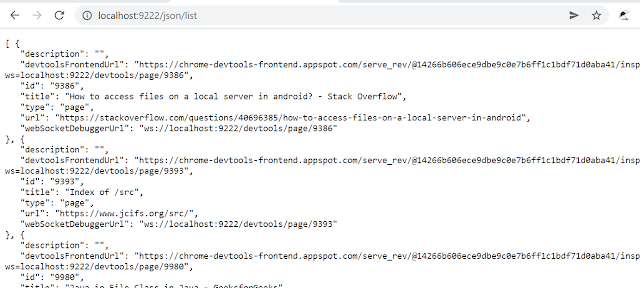


6. Parse the JSON & save to file:

If you have JQ tool installed you could parse this JSON, extract only URLs and save in txt file like that:

Install JQ if not already installed, using Chocolaty or preference:

e.g: 


7. Save JSON as list of links file:


8. Open file, copy and paste all urls as new tabs using Copy Urls or use export file as needed. "Bookmark All Tabs" can then be used to save all bookmarks at once.


 Open All Tabs from Android Chrome to Windows Chrome:

Ensure sync Open Tabs is ON in settings | Manage what you sync:


– Open Chrome on your desktop (you must log into the same account as on your Android Phone/Tablet).
– In a new tab/window, press Ctrl+H.
– Click “Tabs from other devices” and you will see all your opened tabs.


– Click “Actions” or 3 dots.
– Click “Open All” and all your opened tabs from your Android Phone/Tablet should open on your Chrome desktop.
– Press Ctrl+Shift+D to “Bookmark all tabs”.
– Select a folder and click “Save”.


Friday, June 25, 2021

GMail Forward Email for all items in label

/*
Main
https://stackoverflow.com/questions/56023037/forward-email-message-with-mailapp-instead-of-gmailapp
*/
function forwardForever() {

  Logger.log('forwardForever2() START ');
  var labelName = "Trash"

  var threads = GmailApp.search("in:trash label:" + labelName);
  Logger.log('forwardForever2() threads.length ' + threads.length);
  for (var i = 0; i < threads.length; i++) { 
   Logger.log('forwardForever2() forward id ' +  threads[i].getId());
     try
     {
         // try this just in case
        //Gmail.Users.Messages.remove('me', threads[i].getId());
        var firstThread = threads[i];
        var message = firstThread.getMessages()[0];
         Logger.log('forwardForever2() START forward ' + message.getSubject());
        
        message.forward("1@yahoo.com");

        Logger.log('forwardForever2() DONE forward ' + message.getSubject());
        
     }
     catch(e){
        Logger.log('forwardForever2() ERROR id ' +  threads[i].getId());
        Logger.log(e);
     }
     Logger.log('forwardForever2() NEXT...');
    
  }
}

Thursday, June 24, 2021

Android 11 / LG Bloatware Uninstall/Disable to boost performance

 Android 11 / LG Bloatware Uninstall/Disable to boost performance :

Use as needed:


Adb Commands : Uninstall & Disable

https://www.xda-developers.com/uninstall-carrier-oem-bloatware-without-root-access/

https://www.droidwin.com/remove-uninstall-bloatware-apps-from-android-via-adb-commands/#Disable_Bloatware_Apps_on_Android

1. Disable:

Adb shell | pm disable com.lge.lgfota.permission

pm disable-user

2. UnInstall:

1. adb shell pm uninstall com.att.mobilesecurity

2. adb shell pm uninstall --user 0 com.att.mobilesecurity

These two flags respectively specify that the system app will only be uninstalled for the current user (and not all users, which is something that requires root access) and that the cache/data of the system application will be preserved  

3. pm uninstall -k --user 0 com.android.service

keep app data

Disable OTA Updates:

1. Adb shell | pm disable com.lge.lgfota.permission

2. Developer Options | Disable Automatic Updates

3. Package Disabler | Disable LG Update Center

V60 Remove Bloatware

See :

https://forum.xda-developers.com/t/no-root-needed-remove-bloatware-from-lg-v60-tmobile-or-att.4244333/

*TMobile Bloat

pm uninstall -k --user 0 com.tmobile.pr.mytmobile

pm uninstall -k --user 0 com.tmobile.m1

pm uninstall -k --user 0 com.tmobile.pr.mytmobile

pm uninstall -k --user 0 com.tmobile.pr.adapt

pm uninstall -k --user 0 com.tmobile.rsuadapter.qualcomm

pm uninstall -k --user 0 com.tmobile.rsuapp

pm uninstall -k --user 0 com.tmobile.rsusrv

               *Google/FB Bloat

pm disable-user com.nextradioapp.nextradio

pm disable-user com.google.android.music

pm disable-user com.google.android.videos

pm disable-user com.google.android.videos

pm disable-user com.google.android.videos

pm disable-user com.google.android.videos

pm disable-user com.facebook.system

pm disable-user com.facebook.appmanager

pm disable-user com.facebook.katana

                 *LG Bloat

pm uninstall -k --user 0 com.lge.theme.highcontrast

pm uninstall -k --user 0 com.lge.qmemoplus

pm uninstall -k --user 0 com.lge.qhelp

pm uninstall -k --user 0 com.lge.qhelp.application

pm uninstall -k --user 0 com.lge.bnr

pm uninstall -k --user 0 com.lge.bnr.launcher

pm uninstall -k --user 0 com.lge.music

pm uninstall -k --user 0 com.lge.email

pm uninstall -k --user 0 com.lge.exchange

pm uninstall -k --user 0 com.lge.sync

pm uninstall -k --user 0 com.lge.ia.task.informant

pm uninstall -k --user 0 com.lge.leccp

pm disable-user com.google.android.apps.tachyon //google pay

pm disable-user com.lge.fmradio

pm disable-user com.lge.lgbroadcastradioservice

pm uninstall -k --user 0 com.lge.lifetracker

pm uninstall -k --user 0 com.lge.lgworld

-- MISC TODO (Optional for me)

*Google Bloatware

pm uninstall -k --user 0 com.google.android.googlequicksearchbox

pm uninstall -k --user 0 com.google.android.gm

pm uninstall -k --user 0 com.google.android.apps.tachyon

pm uninstall -k --user 0 com.google.android.music

pm uninstall -k --user 0 com.google.android.apps.docs

pm uninstall -k --user 0 com.google.android.apps.maps

pm uninstall -k --user 0 com.android.chrome

pm uninstall -k --user 0 com.google.android.apps.photos

pm uninstall -k --user 0 com.google.vr.vrcore

pm uninstall -k --user 0 com.google.android.youtube

pm uninstall -k --user 0 com.google.android.videos

pm uninstall -k --user 0 com.google.android.talk

pm uninstall -k --user 0 com.google.android.apps.books

pm uninstall -k --user 0 com.google.android.apps.magazines

pm uninstall -k --user 0 com.google.android.apps.plus

* amazon

pm uninstall -k --user 0 com.amazon.mShop.android

pm uninstall -k --user 0 com.amazon.fv

pm uninstall -k --user 0 com.amazon.kindle

pm uninstall -k --user 0 com.amazon.mp3

pm uninstall -k --user 0 com.amazon.venezia


Enable Chrome+Edge Flags

chrome://flags/#smooth-scrolling

chrome://flags/#heavy-ad-privacy-mitigations

chrome://flags/#heavy-ad-privacy-mitigations

chrome://flags/#enable-android-dark-search

chrome://flags/#enable-force-dark

chrome://flags/#heavy-ad-privacy-mitigations

chrome://flags/#enable-zero-copy

chrome://flags/#enable-gpu-rasterization

chrome://flags/#smooth-scrolling

Friday, June 11, 2021

Android Disable System Updates : Disable the message "Install update keep device running smoothly"

Stop the "Install update keep device running smoothly" message"; 
  1. How do I stop google play services auto update? 
Yes it is possible to stop it from auto updating itself.follow these steps to do that:-


. Go to setting


. Tap on data usage option


. Scroll down and find Google play services


. Tap on it then scroll down and put a check on Restrict background data option


. Now it's only update when you manually update it.


. You can use this method for any app and also revert it anytime.

 OR 

  2. Block System Update 


To do it follow these steps if you are on Lollipop or higher.


The update notifications usually comes on your notification bar and cannot be removed by swiping to left or right. You can either skip it by giving a time limit.

When the notification comes, pull down the notification pannel and long press on the update notification.

You will see a setting logo to the right side of the notification.

Press that and go the update notification settings.

There will be a toggle for blocking all notification from this app. Turn on that toggle and you won't get any more notifications.


 OR 

  3. Option 3 

Go to Settings > Apps.

Navigate to Manage Apps > All Apps.

Find an app called Software Update, System Updates or anything similar, since different device manufacturers have named it different.

To disable system update, try any of these two methods, the first one being recommended:

Tap Turn Off or Disable button and then OK.

In case this button is grayed out, tap on Force Stop > OK to turn the process off temporarily. In such case, there is a possibility that the app may turn on automatically

Disable any update notifications by unchecking “Show Notifications” checkbox in supported devices.


And Android Apps in general, more info here
https://www.alphr.com/disable-updates-android-device/

Wednesday, April 21, 2021

Microsoft Edge Settings and Flags to boost performance : Part 1

Microsoft Edge Settings and Flags to boost performance : Part 1

Microsoft Edge on Windows 10 is great....but...can be slow sometimes.

Here is a word doc version of this post:


Here is the original post

Summary

For me Edge Chromium on Windows 10/11 is an exceptional alternative to Chrome & integrates nicely with Office365, however it can get slow over time. For me on my SurfaceGo 1.6Ghz *GB Ram tablet this was especially the case. Below is a list of tweaks applied to boost the load time, execution time, cpu usage and RAM usage of the Edge Chromium browser on windows. Many settings can be utilized with Chrome to, just replace edge:flags with chrome:flags and seek the flag name. Some settings are platform specific such as the new Startup Boost feature from MS for Edge,  if I had time I noted otherwise please be aware. 


Settings


1.      1.Sync: Sync only whats needed, turn off sync when not neede


2.       Flags: Browse to edge://flags/


3.       edge://flags/#enable-lazy-image-loading = enabled

4.       edge://flags/#enable-heavy-ad-intervention = enabled

5.       edge://flags/#enable-lazy-image-loading = enabled

6.   edge://flags/#enable-heavy-ad-intervention = enabled

7.   edge://flags/#allow-previews  = disabled

8.   edge://flags/#disable-accelerated-video-encode = disabled

9.   edge://flags/#disable-accelerated-video-decode = disabled

10.   edge://flags/#enable-quic = enabled

11.   edge://flags/#lite-video-default-downlink-bandwidth-kbps = enabled

12.   edge://flags/#back-forward-cache = enabled

13.   edge://flags/#edge-experimental-tracking-prevention-features = enabled


14, Others:

edge://flags/#lite-video-default-downlink-bandwidth-kbps  = 400

and

edge://flags/#quiet-notification-prompts = Enabled


15: Settings: edge://settings/system


16: New Performance Mode:

--enable-features=msPerformanceModeToggle

1.   First of all, right-click on the Edge Canary desktop shortcut and select “Properties”.

2.   Navigate to the target field in the Shortcut tab, add a space, and then paste the following parameter:  --enable-features=msPerformanceModeToggle

3.   Click the Ok button and restart the browser to apply the latest changes.

4.   Finally, head to Settings >> System >> and enable the “Performance Mode” toggle button available under the Optimize Performance section.


Startup boost ad Kids Mode Discussed over here:

https://www.digitaltrends.com/computing/microsoft-edge-performance-mode-feature/ 

Extract IP address from text with regular expression and TextPad

I have a text file like the below, we want to extract the IP's from this :


[Service blocked: CP] from source 192.168.1.51, Wednesday, Apr 21,2021 04:19:16

[Service blocked: CP] from source 192.168.1.51, Wednesday, Apr 21,2021 04:19:03

[Service blocked: CP] from source 192.168.1.16, Wednesday, Apr 21,2021 04:18:52

[Service blocked: CP] from source 192.168.1.51, Wednesday, Apr 21,2021 04:18:40

[Service blocked: CP] from source 192.168.1.51, Wednesday, Apr 21,2021 04:18:12

[Service blocked: CP] from source 192.168.1.16, Wednesday, Apr 21,2021 04:17:47

[Service blocked: CP] from source 192.168.1.51, Wednesday, Apr 21,2021 04:17:39

[Service blocked: CP] from source 192.168.1.51, Wednesday, Apr 21,2021 04:17:00

[Service blocked: CP] from source 192.168.1.16, Wednesday, Apr 21,2021 04:16:42

[Service blocked: CP] from source 192.168.1.51, Wednesday, Apr 21,2021 04:16:38

[LAN access from remote] from 179.60.150.46:44350 to 192.168.1.15:5001, Wednesday, Apr 21,2021 04:16:27


To do this :


  • Ctrl+H
  • Find what: ^.+?((?:\d+\.){3}\d+).+$
  • Replace with: $1
  • check Wrap around
  • check Regular expression
  • DO NOT CHECK . matches newline
  • Replace all


View Example Here


Explanation:

^           : beginning of line
.+?         : 1 or more any character but newline
(           : start group 1
  (?:       : start non capture group
    \d+     : 1 or more digit
    \.      : a dot
  ){3}      : end group, must appear 3 times
  \d+       : 1 or more digit
)           : end group 1
.+          : 1 or more any character but newline
$           : end of line

Replacement:

$1          : content of group 1 (ie. the IP)

Result for given example:

54.246.81.158
175.36.129.24

Wednesday, April 7, 2021

Keyboard Shortcuts for Android Emulator : srccpy

Summary

 srccpy is a great screen mirroring application to emulate Android on a PC. Open Source, stable, well documented and feature rich are some of the highlights of srccpy  making it one of the best choices for mirroring and/or remoting to Android from a PC. 

Here are a list of PC keyboard shortcuts and the matching Android gestures, these are very important to augment & complete the experience of remote controlling an Android device from a PC. 

Prerequisites

Here are 2 YouTube videos on how to setup scrcpy, 

1) install and setup USB connection to Android and then 

2) setup wireless connection to Android.  


Keyboard Shortcuts

Click on HOME - Mouse Middle-click

Click on BACK - Mouse Right-click

Click on APP_SWITCH - Win+s

Click on MENU (unlock screen) - Win+m

Click on VOLUME_UP - Win+↑ (up)

Click on VOLUME_DOWN - Win+↓ (down)

Click on POWER - Win+p

Power on - Mouse Right-click

Turn the device screen off

but keep mirroring - Win+o

Turn device screen on - Win+Shift+o

Rotate device screen - Win+r

Expand notification panel - Win+n

Collapse notification panel - Win+Shift+n

Copy to clipboard - Win+c

Cut to clipboard - Win+x

Synchronize clipboards and paste - Win+v

Inject computer clipboard text - Win+Shift+v

Enable/disable FPS counter - Win+i

Pinch-to-zoom - Ctrl+click-and-move