Tuesday, June 5, 2018

Windows 10 + SurfaceBook 2 Performance Tweaks : Update UI & OS Settings, Remove Bloatware & MS Spyware, Tweak Network Adapter

Windows 10 Setup: Tweak UI to look more like Windows 7

  1. Add personalization shortcut to desktop, see Figure 1 below

  2. Add Classis Shell to Windows 10,restore the look and feel of Win7

    1. Download Classic Shell here

  3. Tweak Windows Explorer:

    1. View Hidden, icons only ect per view menu

  4. Tweak System UI Performance: System:

    1. Adjust for best performance

  5. Change Computer name

Windows 10 Setup: Tweak OS to improve performance

** note ** Use of my computer is targeted towards development + some multimedia editing. So what works for gamers doesn’t work for me,

  1. Tweak Services for Performance per Black Viper recommendations,.

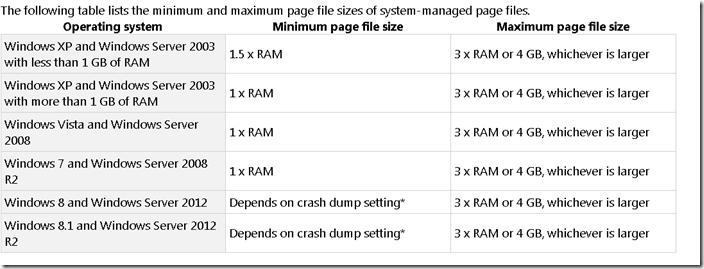
  2. [Optional] Tweak Paging File for performance,

    1. If RAM > 8GB I keep defautl setting

    2. If Ram <=8gb, SET TO RAM * 1.5

  3. Disable startup applications

    1. MsConfig

    2. Task Scheduler (Hidden)

    3. CCleaner

  4. Disable system visual effects

  5. Disable search indexing / Modify Indexing

https://www.howtogeek.com/howto/windows-vista/speed-up-or-disable-windows-search-indexing-in-vista/

  1. Disable Diag track

    1. sc config "DiagTrack" start= disabled
      
      sc stop "DiagTrack"
  2. Disable 
    1. Get tips, tricks and suggestions as you use Windows.
    2. See https://www.tenforums.com/tutorials/30869-turn-off-tip-trick-suggestion-notifications-windows-10-a.html
  3. Disable Data Collection:
    1. See https://www.majorgeeks.com/content/page/how_to_disable_diagnostics_tracking_(diagtrack)_or_connected_user_experiences_and_telemetry.html
    2. and https://winaero.com/blog/how-to-disable-telemetry-and-data-collection-in-windows-10/
    3. HKEY_LOCAL_MACHINE\SOFTWARE\Policies\Microsoft\Windows\DataCollection
    4. AllowTelemetry = 0 
    5. and
    6. Diag Track Listener Disable

Windows 10: Remove Bloatware & MS Spyware


Overview:

How to run Debloat Summary

    1. Edit Scripts:

    2. Run scripts in order

        Open PowerShell as an Administrator

        Type the command (without quotes): “Set-ExecutionPolicy Unrestricted” and press enter

    3. Run Other Tools as needed

Debloat-Windows-10-master

    Main debloater with several scripts to remove Win10 bloatware

Debloater GitHub Download Scripts here

Remove Apps Script

How to Debloat

More help...

Other Tools

    WindowsAppsRemover_winxar_102

        Remove/Disable pesky Windows 10 Apps

    O&O ShutUp10

        Disable Windows 10 useless features, O&O ShutUp10 means you have full control over which comfort functions under Windows 10

https://www.oo-software.com/en/shutup10

DisableWinTracking

        Disable MS tracking!

http://www.softpedia.com/get/Tweak/System-Tweak/Windows-10-Tracking-Disable-Tool.shtml

SurfaceBook 2: Tweak Network Adapter for performance:

Boost Surface Book/ Pro Wi-Fi connectivity

The first thing you have to do is to open the registry as an administrator, simply type regedit in the taskbar search box, and hit Enter.

Navigate to the following path:

HKEY_LOCAL_MACHINE\SYSTEM\ControlSet001\Services\mrvlpcie8897

Find the item labeled “TXAMSDU”. Double tap and modify the value from 1 to 0.

Restart your Windows 10 PC to complete the workaround.

If everything works as expected, your slow connectivity should be resolved and you should now see an improved wireless connection.

Windows 10 Issues I ran into:

  1. Mapped drives do not work in Windows 10.

    1. Set EnableLinkedConnections = 1'

  2. Surface MS Wireless Adapter does not work

  3. Mapped Drives do not work after switching Wifi spots on same network:

    1. Open Cmd ->

    2. ipconfig /release

    3. ipconfig /renew

  4. Adobe After Effects and other apps have super tiny unreadable font.

    1. Fix Display Scaling in Windows 10 apps!

    2. And here is my manifest I used to fix Adobe After Effects

    Download AfterFX.exe.manifest

Figure 1

Clipped from: https://www.howtogeek.com/277448/how-to-make-windows-10-look-and-act-more-like-windows-7/

Easily Access the Classic Personalization Window

By default, when you right-click on the Windows 10 desktop and select Personalize, you are taken to the new Personalization section in PC Settings. However, the Personalization window from Windows 7 is still available in the Control Panel. You can add a shortcut to the desktop so you can quickly access the classic Personalization window if you prefer it.

Right-click on the desktop and select New > Folder from the popup menu.


Copy and paste the following text into the name of the folder and press Enter.

Personalization.{ED834ED6-4B5A-4bfe-8F11-A626DCB6A921}


The icon changes to the personalization icon and the name of the folder also changes to Personalization. Double-click this icon to access the classic Personalization window in the Control Panel.

Personalization

Figure 2 : Other Links

scripts

https://community.spiceworks.com/scripts/show_download/3977-windows-10-decrapifier-version-2

https://github.com/bmrf/tron/blob/master/resources/stage_4_repair/disable_windows_telemetry/purge_windows_10_telemetry.bat

https://github.com/W4RH4WK/Debloat-Windows-10

Utils

https://www.computerworld.com/article/3199125/microsoft-windows/top-30-free-apps-for-windows-10.html#slide21

https://www.google.com/search?q=win+10+remove+bloatware&rlz=1C1SQJL_enUS790US790&oq=win+10+remove+bloatware&aqs=chrome..69i57j69i64l2.5956j0j7&sourceid=chrome&ie=UTF-8

https://www.theguardian.com/technology/askjack/2018/jan/18/how-can-i-remove-unwanted-apps-from-windows-10

https://www.computerworld.com/article/3199125/microsoft-windows/top-30-free-apps-for-windows-10.html#slide21

https://sourceforge.net/projects/windirstat/files/

https://www.lastpass.com/

https://support.microsoft.com/en-us/help/3073930/how-to-temporarily-prevent-a-driver-update-from-reinstalling-in-window

https://filehippo.com/download_speccy

https://www.revouninstaller.com/revo_uninstaller_free_download.html

https://docs.microsoft.com/en-us/sysinternals/downloads/autoruns

See here

Run all programs as Administrator on Windows

We have 3 options to run a program as Admin in Windows:

1) Shift Right Click , then run as admin

2) Shortcut –> Properties –> Advanced –> check “Run as  Admin” check box

3) Default all apps to runas admin: Using UAC, we then can disable UAC thereby all apps run as Admin via reduced rights. This is OK for home use but prob. not corp use due to security and policies. If your home environment is secure via router / firewalls and a solid antivirus on the machine consider allow all APPS to runas Admin, this reduces the manual intervention on every app start, see below procedure

3.a

Danger! See here more info

Run gpedit.msc to open the Local Group Policy Editor. Expand Computer Configuration, Windows Settings, Security Settings, Local Policies, and Security Options. Four settings need to be updated:

  1. Set "User Account Control: Behavior of the elevation prompt for administrators in Admin Approval Mode" to Elevate without prompting.
  2. Set "User Account Control: Detect application installations and prompt for elevation" to Disabled.
  3. Set "User Account Control: Run all administrators in Admin Approval Mode" to Disabled.
  4. Set "User Account Control: Only elevate UIAccess applications that are installed in secure locations" to Disabled.

The LGPE automatically saves all changes, so exit it and reboot.

3.b

1 - Add User To Administrators Group And Remove From Users Group:

  1. Log In As Administrator

  2. Go To Run ( WinKey + R )

  3. Type "control userpasswords2"

  4. Select Your Account And Click On "Properties"

  5. Select "Group Membership" Tab

  6. Select "Administrators"

  7. Click OK And OK


2 - Disable Approval Mode

  1. Log In As Administrator

  2. Go To Run ( WinKey + R )

  3. Type "secpol.msc"

  4. Go To Local Polices > Security Options

  5. Find "User Account Control: Switch to the secure desktop when prompting for elevation"

  6. Open It Click Disable It And Click Ok.

  7. Restart Computer( Very Important Log Off Doesn't Work )


Now Every App Will Be Run As Administrator In All Administrator Users

Surprised smile

Monday, June 4, 2018

Fix Adobe After Effects small font on menus or other windows apps with tiny fonts

See below reg file, use when font on UI is too small to read even though DPI is at normal level (100% or 125%)


1) Tell windows to prefer an external manifest file

--------------------------------------------------------------------------------

Windows Registry Editor Version 5.00

[HKEY_LOCAL_MACHINE\SOFTWARE\Microsoft\Windows\CurrentVersion\SideBySide]
"PreferExternalManifest"=dword:00000001

--------------------------------------------------------------------------------

2) Create and place the external manifest files

and then add this to program.manifest in PF dir of Adobe After Effects (or said app)


See also:

https://forums.adobe.com/thread/1692469

and

https://www.danantonielli.com/adobe-app-scaling-on-high-dpi-displays-fix/


for more info

Wednesday, May 23, 2018

Export All Google Tasks then Import into TickTick for All tasks : going back years!

Problem:

Google Task import into TickTick or GTasks only imports GTasks that are active and if Completed, then only 1 year old.

If you want to import very old Completed tasks into TickTick, there is no way to do this with the TickTick nor Google GTasks.


Solution:

Pre Req’s:

Get the Google Tasks Export Format:

https://tasks-backup.appspot.com/

Get the TickTick Import File Format:

See  https://help.ticktick.com/forum/topic/348273/import-list-items-from-excel

Also, run an export to see the EXACT format, there is heade and footer stuff

Run a export and save as a SampleTickTickExport.csv

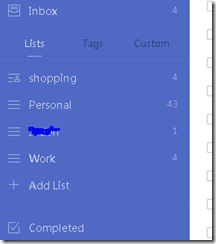
See Figure 2 to compare TickTick and Google tasks csv format.


1. Export ALL tasks from Google Tasks to .csv including tasks up to 5 years old. using https://tasks-backup.appspot.com/ (check all the check boxes for hidden/deleted)

tasks_import_export_[email]_2018-05-24.csv

2. import that .csv into a SQL table, then transform the data to what TickTick expects.

Import GoogleTasks.csv  into SQL table. : [tasks_import_export_f]

Use SQL (attached file TaskImportExport.sql) to clean up data. Step 1 in sql file

Use SQL to create a new table “Staging” [tasks_import_export_d] Step 2 in sql file

3. Export staging data (see #2 below in SQL) to  a csv file using Results Save to file, save the csv name Staging_GTasks.csv 

4. Because TickTick wants unix style LF, you must supply a LF at end of each line , NOT CRLF

Open in Notepad++, replace CRLF with LF for (very easy in Notepad++)

5. Open Staging_GTasks.csv  in textpad & open SampleTickTickExport.csv

paste the contents from  Staging_GTasks.csv   into SampleTickTickExport.csv  in between header and footer.

6. import into Tick Tick using back utility (very nice!)

https://www.ticktick.com/#settings/backup


7. Done!

8. Someday soon automate this! perhaps 2-3days of code we could make a web app to create the TickTick file, or use this manual proc,

here is API that may be a start:

FAQ:

https://guide.ticktick.com/does_ticktick_have_an_api.html

Code:

https://docs.google.com/document/d/1zo0JdIWnQWi-D0v7xikknEnsLj4RmrzOuqzScdR_tm8/edit#heading=h.vmuori4i7puz

https://gist.github.com/jackinside/22dd1ed1011403646d6a

9. I may just change my mind buz:

https://blog.hubspot.com/marketing/best-to-do-list-apps-tools

Why pay when I get possibly all I need in Wunderlist?

3


Figure 1:

1.PNG


Figure 2:

2


Figure 3 SQL:

use [myNGC_STG_Custom_PCard]
go


-- -1) Clean Up

--select *  FROM [dbo].[tasks_import_export_f] where len([due])= 0 and len([completed]) =0
--update [dbo].[tasks_import_export_f] set [due] = '2018-04-29' where len([due])= 0 and len([completed]) =0
--select *  FROM [dbo].[tasks_import_export_f] where len([due])= 0 and len([completed]) =0
--update [dbo].[tasks_import_export_f] set [due] = '2018-04-29' where len([due])= 0 and len([completed]) =0

----update [dbo].[tasks_import_export_f] set [due] = [due] + 'T04:00:00+0000' where len([due])> 0
--update [dbo].[tasks_import_export_f] set [completed] = left([completed], 10) where len([completed])> 0
--update [dbo].[tasks_import_export_f] set [completed] = [completed] + 'T04:00:00+0000' where len([completed])> 0


--2) export to csv, save to file, replace CRLF with LF (Notpad++)
set nocount on

SELECT '"' +[tasklist_name]+ '"' "List Name"
       ,'"' +[title]+ '"' "Title"
       ,'"' +replace(dbo.[udfTrimInvalidChars](ltrim(rtrim([notes]))), '\n' , CHAR(13))+ '"'  "Content"
       --,replace(dbo.[udfTrimInvalidChars](ltrim(rtrim([notes]))), '\n' , CHAR(10) )  "Content2"
      
       ,'"' +'N' + '"' "Is Checklist"
       ,'"' +[due]+ '"' "Start Date"
       ,'"' +[due]+ '"' "Due Date"
       ,'"' +''+ '"' "Reminder"
       ,'"' +''+ '"' "Repeat"
       ,'"' + '0'+ '"' "Priority"
       ,'"' +case when len([completed]) > 0 Then '2' Else '0' End + '"' "Status"
       ,'"' +case when len(due) =0 then [completed] Else [due] End + '"' "Created Time"
       ,'"' +[completed]+ '"' "Completed Time"
       ,'"' +'-1099511627776' + '"' "Order"
       ,'"' +'America/New_York'+ '"' "Timezone"
       ,'"' +'' + '"' "Is All Day"
   FROM [dbo].[tasks_import_export_f]


CREATE FUNCTION [dbo].[udfTrimInvalidChars](@String VARCHAR(MAX))

RETURNS VARCHAR(MAX)
BEGIN
     Declare  @Result varchar(max)
    
     Set @Result = ltrim(rtrim(Isnull(@String, '')))
    
     Set @Result =  replace(replace(replace(replace(replace(replace(replace(@Result, '''', ''), '"', ''), '  ',  ' '), char(160), ''), CHAR (13) + CHAR (10) , ''), CHAR (10), ''), CHAR (9), '')
     Set @Result = case when len(@Result) = 0 then null else ltrim(rtrim(@Result)) End
 
 
     return dbo.[udfTrim](@Result)
END


CREATE FUNCTION [dbo].[udfTrim] (

@str VARCHAR(MAX)) RETURNS VARCHAR(MAX)
AS

BEGIN
DECLARE @trimchars VARCHAR(10)
SET @trimchars = CHAR(9)+CHAR(10)+CHAR(13)+CHAR(32)
IF @str LIKE '[' + @trimchars + ']%' SET @str = SUBSTRING(@str, PATINDEX('%[^' + @trimchars + ']%', @str), 8000)
RETURN ltrim(rtrim(@str))
END


--Refs:
--https://www.cnet.com/how-to/how-to-import-and-export-in-google-tasks/
--https://productforums.google.com/forum/#!topic/calendar/pSmEFZPJG50
--https://www.technorms.com/24082/export-gmail-tasks-google-tasks-backup
--https://tasks-backup.appspot.com/progress--https://help.ticktick.com/forum/topic/348273/import-list-items-from-excel
--https://www.ticktick.com/#settings/backup

Monday, May 7, 2018

Optimize Windows 7 64bit for an older laptop

1. Defrag using Defraggler

2. Malware checkup

3. Driver Checks

4. Remove AutoRun stuff + AutoRun & Revo Uninstaller free

5. Tune Paging File : General Rules Max/Min=(RAM * 1.5) per This Windows SuperIUser post with MS Reference

6. For more examples:

 and MS Best Practices for paging files accross Windows versions

more detailed Technical Insight from SysInternals Author!

image

Diagnostics:

a. Deterrmine Cause of performance issues during load using tools:

The size of your Paging File depends on the workload you are running.

The best advice can be found in this article:

http://blogs.technet.com/b/markrussinovich/archive/2008/11/17/3155406.aspx

It was written for Vista but is still true.

Run Process Explorer http://technet.microsoft.com/en-us/sysinternals/bb896653 while running your maximum workload and monitor the peak commit charge on the memory tab of the System Information feature (ctrl+i).

b. Use Perfmon/Resource Monitor: check:

Commit Limit
Crash dump size

Perfmon: Add the following counters:

      • Memory\Committed Bytes - Committed Bytes is the amount of committed virtual memory, in bytes.
      • Memory\Committed Limit - Amount of virtual memory that can be committed without having to extend the paging file
      • Memory\% Committed Bytes In Use - Ratio of Memory\Committed Bytes to the Memory\Commit Limit

The page file size formula should be:

(Max value of Committed Bytes + additional 20% buffer to accommodate any workload bursts)-RAM size

For example: If the server has 24 GB RAM and the maximum of Committed Bytes is 26 GB, then the recommended page file will be: (26*1.2)-24)  = 7.2 GB


to bo continued…

Saturday, May 5, 2018

Get MS Office Photo Editor Back

Like the MS Photo Editor from Office 2010, with it simple UI, Bath functions, fast batch cropping and auto enhance, a nice day to day photo editor without any fluff? Well its back, here, get it via way back or an msi custom :


Custom MSI
https://www.sevenforums.com/music-pictures-video/221827-i-want-my-ms-photo-editor-back.html

and
Way Back:
https://answers.microsoft.com/en-us/windowslive/forum/gallery-program/where-to-download-windows-essentials-2012/7665b354-4f2b-445d-811e-9d8c98e8f872

Thursday, May 3, 2018

Basic Privacy Notepad and Windows Utils to keep machine clean and drive fast

1. Use secure notepad in cloud

https://www.protectedtext.com


2. use Browser: use Brave

https://brave.com/


3. Keep PC Clean

https://www.ccleaner.com/ccleaner/download

4. Keep Disk Drive Defraggd

https://www.ccleaner.com/defraggler

5. Windows 10 : remove windows 10 crap:

https://sourceforge.net/projects/windows8appremover/

more on win 10…