Thursday, January 10, 2019

Should I run 64-bit vs 32-bit PowerShell on Windows OS 64bit?

1. it matters is when PowerShell needs to talk to or use something outside itself. When that happens, the versions have to match.

2. if you are running 32-bit PowerShell and you try to use a module that calls a 64-bit .dll, it will fail. Or if you are running 64-bit PowerShell and you try to create a 32-bit COM object, it will fail

How to detect which Bit is available:

See here|

Tuesday, November 27, 2018

SharePoint Online vs OnPrem

SharePoint Online and On-Premises: a Comparison

Compare: cloud or on-premises? What SharePoint version is more suitable?

Lets compare MS SharePoint Online and MS Office 365


What SPO offers:

1. Range of functions – mobile first, cloud first

2. Modern collaboration tools

3. Updates

Microsoft manages the installation and deployment of updates for SharePoint Online.

4. Availability

OnPrem: We have control of availability if you operate a dedicated datacenter.

SPO: MS guarantees 99.9 percent availability of services (including Exchange and SharePoint), provided you have an SLA.

5. Backups

OnPrem: Up to U

SPO: Microsoft creates regular backups of the entire farm for SharePoint Online.

6. Connection of external users

OnPrem: You need to create your own infrastructure (and it’s quite a lot!) to connect external users if you run SharePoint On-Premises. If that weren’t enough, you will have no choice but to set up security features (e.g. logging and multi-factor authentication) yourself.

SPO: comes with the ability to connect external users. This feature can be expanded simply with a variety of Azure services, so that features such as two-factor authentication and others can be implemented quite easily.

7. Scaling

8. Management

Quick View of SharePoint On-Premises vs SharePoint Online

Range of functions
New tools are made available at a later date
Ported initially by MS to the online version

Modern collaboration tools
You are responsible for implementation
Microsoft works intensively on these tools

Updates
Managed and installed by you
Managed and installed by Microsoft

Availability
You are in charge of availability
SLA with 99.9% availability

Backup
You need to create backups
Microsoft ensures backup and redundancy

Connection of external users
Infrastructure required on your side
Already included

Scaling
Responsibility for detecting and rectifying bottlenecks lies with you
Microsoft looks after scaling

Management
Central Administration and PowerShell
SharePoint Admin Center and PowerShell


Ask:

When is SharePoint Online the better option?
  • If you want to get things up and running quickly: in most cases it will only take minutes to set up an Office 365 account. SharePoint will be at your fingertips in no time at all
  • If you are keen to reduce the costs of your dedicated infrastructure
  • If you want to collaborate with external employees, partners or customers
  • If you would like to use new technologies like Office Delve and Sway
  • If you want to provide your employees with state-of-the-art tools for mobile deployment as well
When is SharePoint On-Premises the better option?
  • If you already have a dedicated infrastructure for SharePoint
  • If you have integrated external employees and customers in your infrastructure already
  • If you require so-called farm solutions – so programs that penetrate deep into the system
  • If you are required to do so for data protection reasons
  • If your Internet connection does not have sufficient bandwidth


More here

BI Report : Learning MS BI Reports using SharePoint Data

  1. Download Power BI for Desktop

    Although Power BI has two versions (Online and for Desktop), I suggest using the Desktop version to create the dashboard, then publish it through Power BI Online to share the dashboard with your colleagues.

  2. Get data from SharePoint

    When opening Power BI, click on the "Get Data" button to access the data sources that are available.

    Getting data from SharePoint to Power BI

  3. Select the right data type

    As you will see, there are 3 types of available SharePoint data connectors; Folders, Online Lists and regular lists. Pick your object type and add your SharePoint URL.

    Selecting data type in Power BI

    Accessing your SharePoint List or Library in Power BI

  4. Load your data

    On the left site, select the relevant folder or list. You will see a preview of the data that can be loaded.

    Load Your Data in Power BI

More here

Sunday, November 25, 2018

Gmail: Using Google Apps Script to Auto Delete Gmail Trash on a schedule! (or anything else for that matter)


1) Create Script

2) test

3) Schedule


Some really cool stuff we can do using Google Developers Dashboard, some references here:

https://gist.github.com/balupton/9800939

and

https://www.mikecr.it/ramblings/marking-gmail-read-with-apps-script/


for my case I need to purge the Trash every Sunday, to do this:

Summary as follows:

1) Create a script to clean Trash label (folder)

function deleteForever() {

  Logger.log('START ');
   var labelName = "Trash"

  var threads = GmailApp.search("in:trash label:" + labelName);
   for (var i = 0; i < threads.length; i++) {
    Logger.log('Delete id ' +  threads[i].getId());
      try {
         Gmail.Users.Messages.remove('me', threads[i].getId());
      }
      catch(e){}
      Logger.log('DONE Delete id ' +  threads[i].getId());
   }
}


2) To enable advanced services for this script, locate Resources on the menu, and select Advanced Google services...

3) Enable Gmail API on the list.

4) Before selecting OK, click on the Google Developers Dashboard link. Search for gmail, and enable

5) Schedule via a trigger:


FYI:

If new to G Scripting, use logging per this spec


Basic logging

A basic approach to logging in Apps Script is to use the built-in Logger. Logs created this way can be viewed by selecting View > Logs in the script editor. These logs are intended for simple checks during development and debugging, and do not persist very long.

For example, consider this function:

function emailDataRow(rowNumber, email) {
  Logger.log('Emailing data row ' + rowNumber + ' to ' + email);
  var sheet = SpreadsheetApp.getActiveSheet();
  var data = sheet.getDataRange().getValues();
  var rowData = data[rowNumber-1].join(" ");
  Logger.log('Row ' + rowNumber + ' data: ' + rowData);
  MailApp.sendEmail(email,
                    'Data in row ' + rowNumber,
                    rowData);
}

When this script is run with inputs "2" and "john@example.com" the following logs are written:

[16-09-12 13:50:42:193 PDT] Emailing data row 2 to john@example.com
[16-09-12 13:50:42:271 PDT] Row 2 data: Cost 103.24

The Logger.log() method expects a string or other JavaScript object. The logs can only hold a limited amount of data, so avoid logging large amounts of text.

Tuesday, November 20, 2018

Excel Copy Cell Function without changing cell reference?

Normally when we copy/paste excel function, on paste the cell reference is adjusted for the

context of where we are pasting to.

For example:

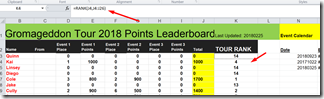
Copy : from K3: =RANK(J3,J3:J25)

image

To: to K4: =RANK(J4,J4:J26)

image 


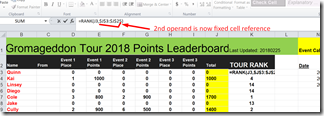
Well I want my rank to go over the ENTIRE range from J3:J25, not from a relative range of

J(n) :J25, so how do we do this? Using fixed cell references:


Change our rank to:

 image

Thursday, November 15, 2018

Fiddler HTTPS Traffic and Accept Cert for Chrome

If u have fiddler capturing traffic and yoiu receive an error:

NET::ERR_CERT_AUTHORITY_INVALID


Then perhaps you need to export Fiddler cert and import into Browser:


1. Export

2. Import into IE


Detail:

Fiddler 4.6.1.5+

  1. Click Tools > Fiddler Options.
  2. Click the HTTPS tab.
  3. Ensure that the text says Certificates generated by CertEnroll engine.
  4. Click Actions > Reset Certificates. This may take a minute.
  5. Accept all prompts


More Info Here

https://www.dropbox.com/s/dfc3mlwhtgrpg93/2018-11-16_01-04-58.mp4?dl=0